15. Quick Start for Renesas R-Car FSP
15.1. Supported Environments
Operating System |
Windows: Windows 10 / Windows 11 |
VS Code version |
1.102.0 (minimum) |
VS Code can be downloaded and installed from this page https://code.visualstudio.com/.
15.2. Installation
Please choose your operating system for operating system dependent installation steps.
Installing the latest R-Car FSP Smart Configurator:
Download and install the latest version of R-Car FSP Smart Configurator:
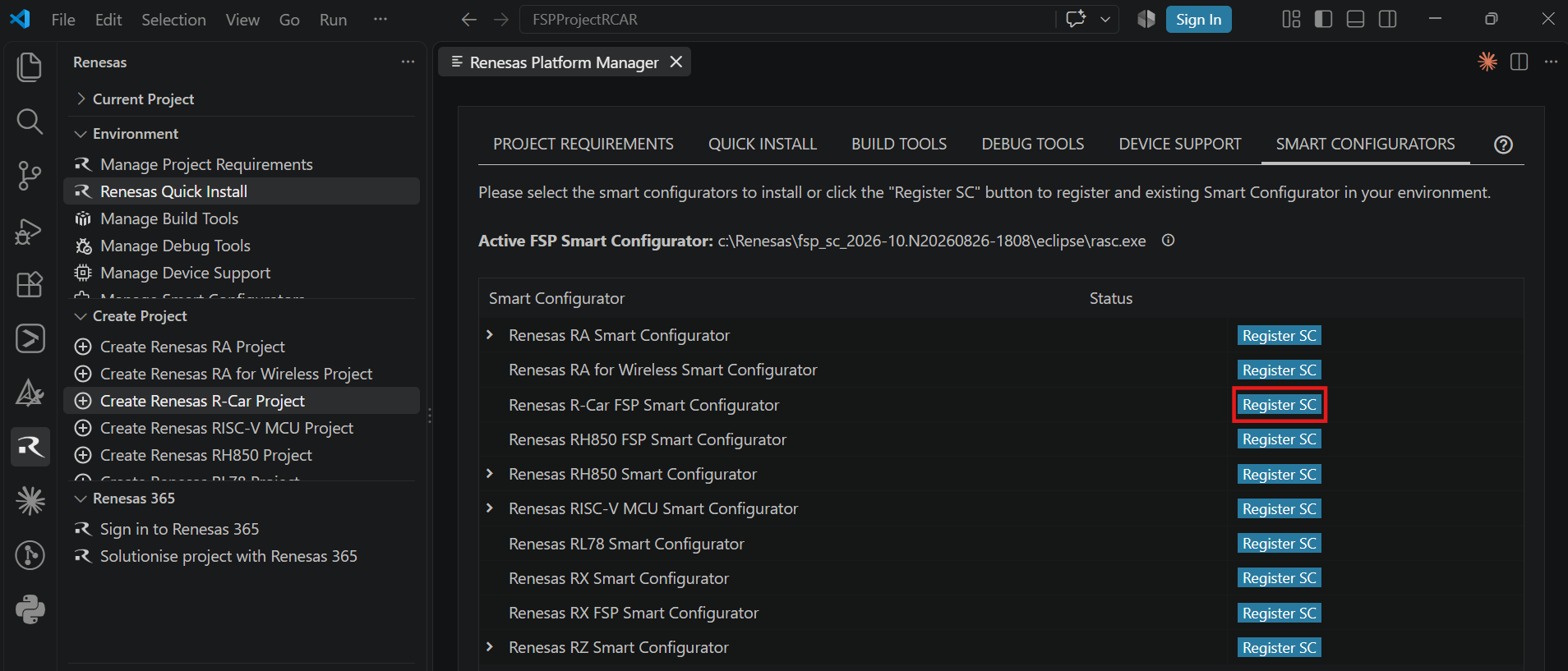
After installing the Renesas R-Car FSP Smart Configurator, you should register the Renesas Smart Configurator installation in VS Code. In order to register the Renesas R-Car FSP Smart Configurator, perform the following steps:
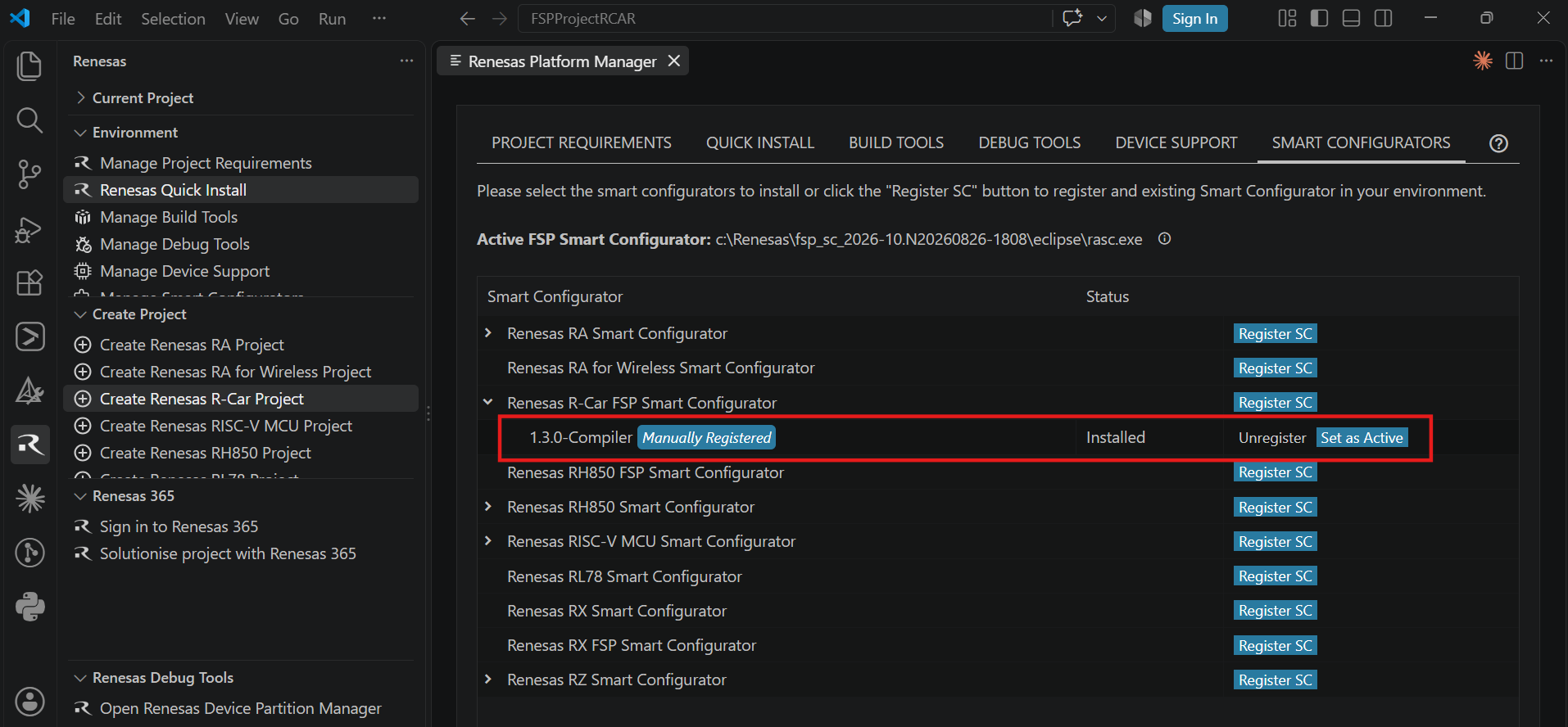
Click “Manage Smart Configurators” and check the Renesas R-Car FSP Smart Configurators. Use the “Register SC” button to register the Smart Configurator manually by selecting the path of the Smart Configurator.
Once it is registered, the Smart Configurator will be visible in the Renesas R-Car FSP Smart Configurators list.
Installing Toolchains for R-Car Development:
Install one of the supported toolchains to build R-Car projects: “LLVM Toolchain for ARM”, “ARM GNU Toolchain”, “IAR Toolchain for ARM”, “GHS Toolchain for ARM”.
Installing and Configuring “LLVM Toolchain for ARM”
Download the toolchain package from Assets catalog of the release page. For example Windows version of ATfE-23.1.0-Windows-x86_64.zip.:
https://github.com/arm/arm-toolchain/releases#release-release-23.1.0-ATfE/
Extract the package, and then set the system environment variable “ARM_LLVM_TOOLCHAIN_PATH” toolchain path for R-Car FSP project build:
> ARM_LLVM_TOOLCHAIN_PATH=C:/Tools/ATfE-23.1.0-Windows-x86_64/bin
Installing and Configuring “ARM GNU Toolchain”
Download and install the latest toolchain:
https://gitlab.arm.com/tooling/gnu-toolchains-for-arm
Set the system environment variable “ARM_GCC_TOOLCHAIN_PATH” toolchain path for R-Car FSP project build:
> ARM_GCC_TOOLCHAIN_PATH=C:/Program Files (x86)/Arm GNU Toolchain arm-none-eabi/13.3 rel1/bin
Installing and Configuring “IAR Toolchain for ARM”
Download and install the latest toolchain:
https://www.iar.com/ or https://github.com/iarsystems/arm/releases/
Set the system environment variable “ARM_IAR_TOOLCHAIN_PATH” toolchain path for R-Car FSP project build:
> ARM_IAR_TOOLCHAIN_PATH=C:/iar/ewarm-9.70.4/arm/bin
Installing and Configuring “GHS Toolchain for ARM”
Download and install the latest toolchain:
Contact your local Green Hills Software (GHS) sales representative to obtain the toolchain, and then install it.
Set the system environment variable “ARM_GHS_ARM_TOOLCHAIN_PATH” toolchain path for R-Car FSP project build:
> ARM_GHS_ARM_TOOLCHAIN_PATH=C:/ghs/comp_202614
Note: After you add or change an environment variable, close all VS Code windows and restart your PC. Otherwise, the new value will not take effect.
Installing Additional Emulator Drivers
You may need to download and install additional USB drivers for establishing a connection with the emulators and devices. Please install the latest drivers before starting your debug session. Use the following links to download the drivers suitable for your operating system and device:
15.3. Creating a Project
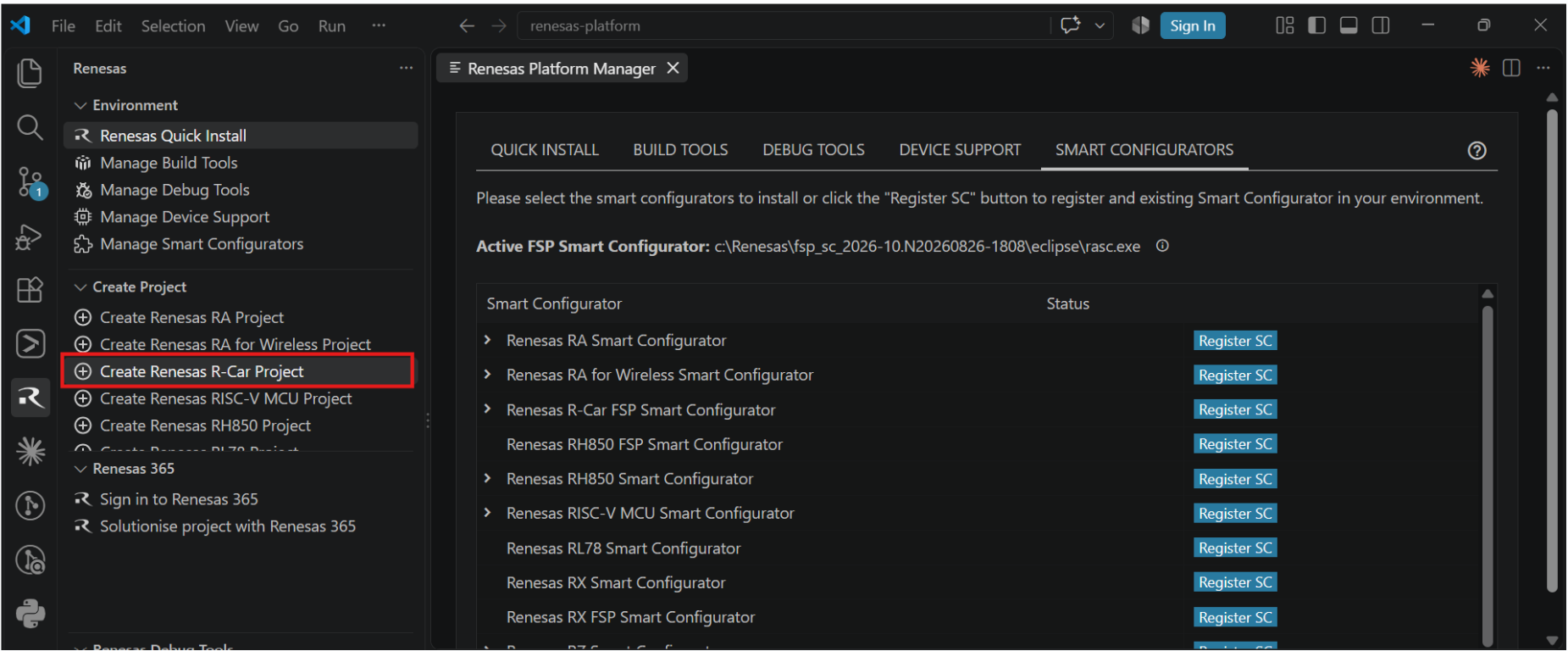
For R-Car FSP device family projects, it is recommended to use R-Car FSP Smart Configurator to create a project for VS Code. Smart Configurator can be accessed via the “Create Project” view in the “Renesas” tab. Please use the following instructions to create and build a project for R-Car FSP device family.
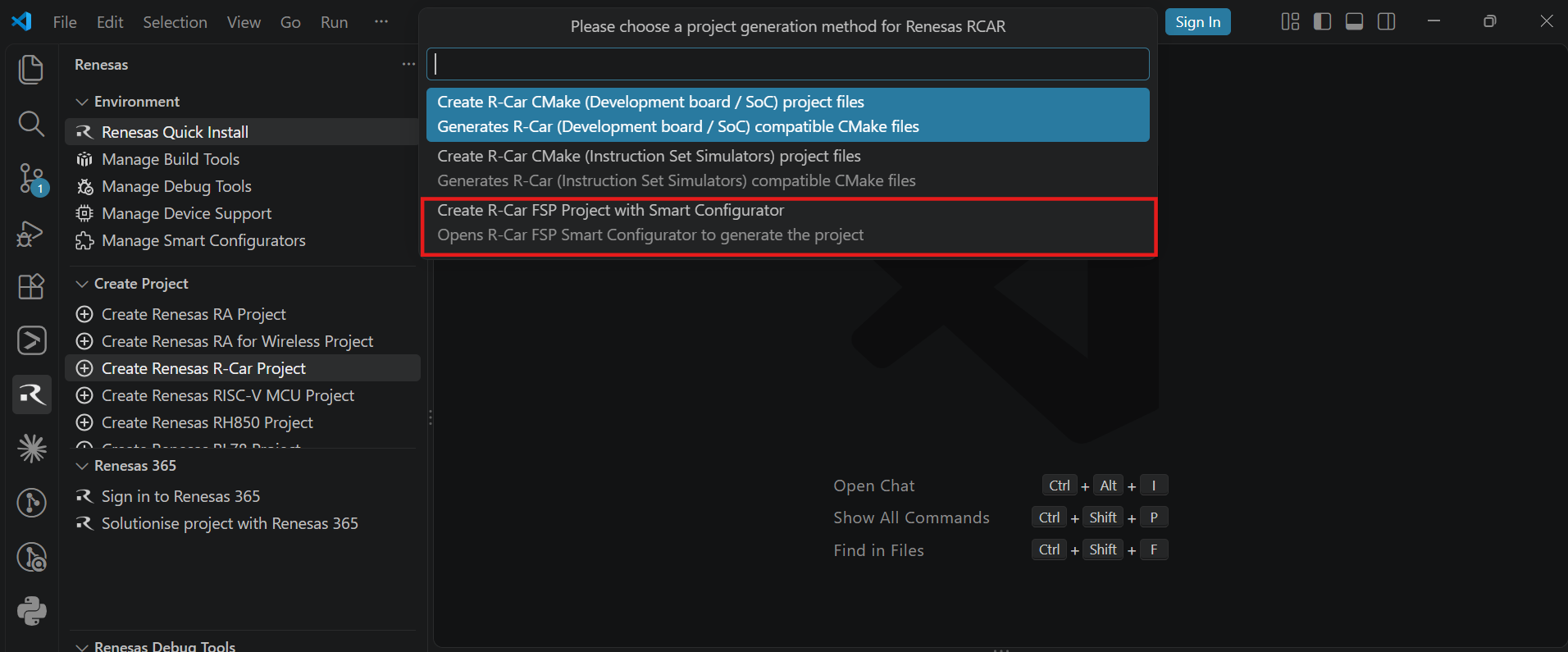
Navigate to “Renesas” and click [Create Renesas R-Car FSP project] from the commands.
Select [Create R-Car FSP Project with Smart Configurator] option from the list.
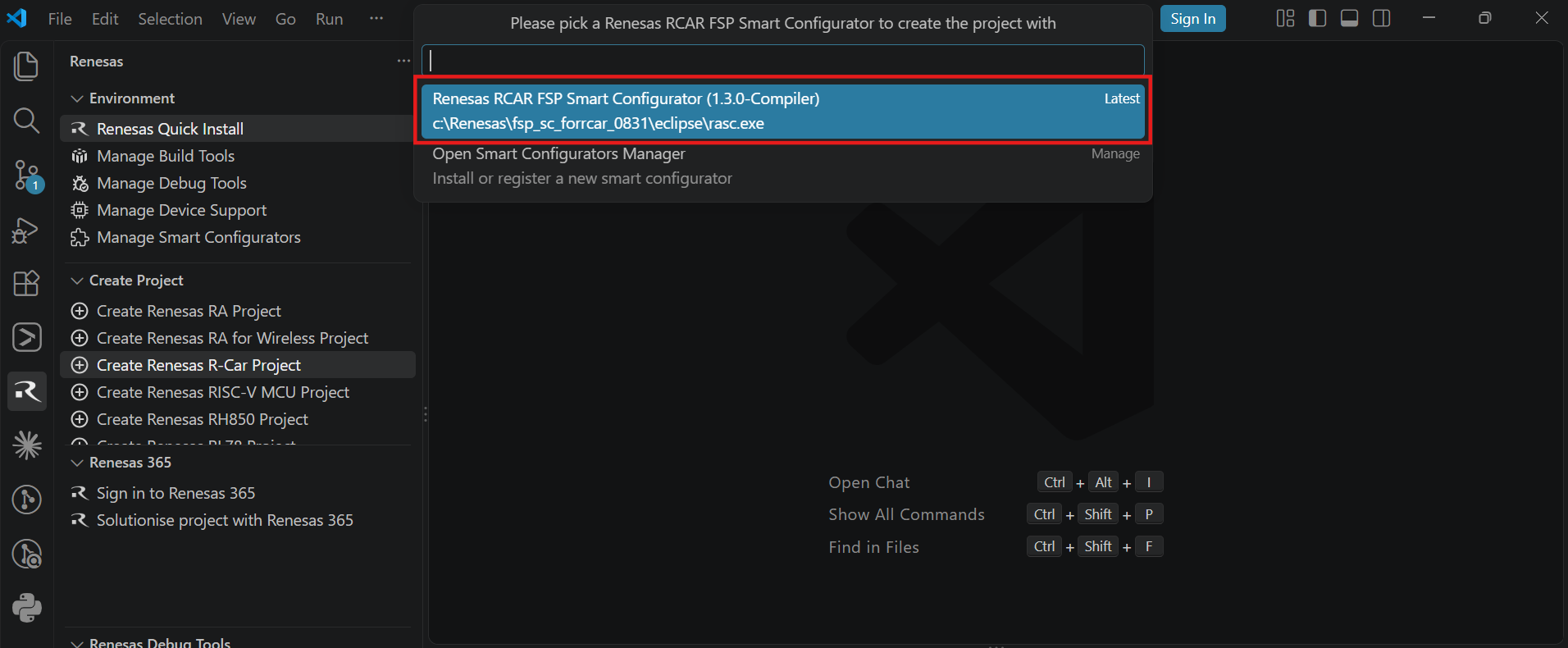
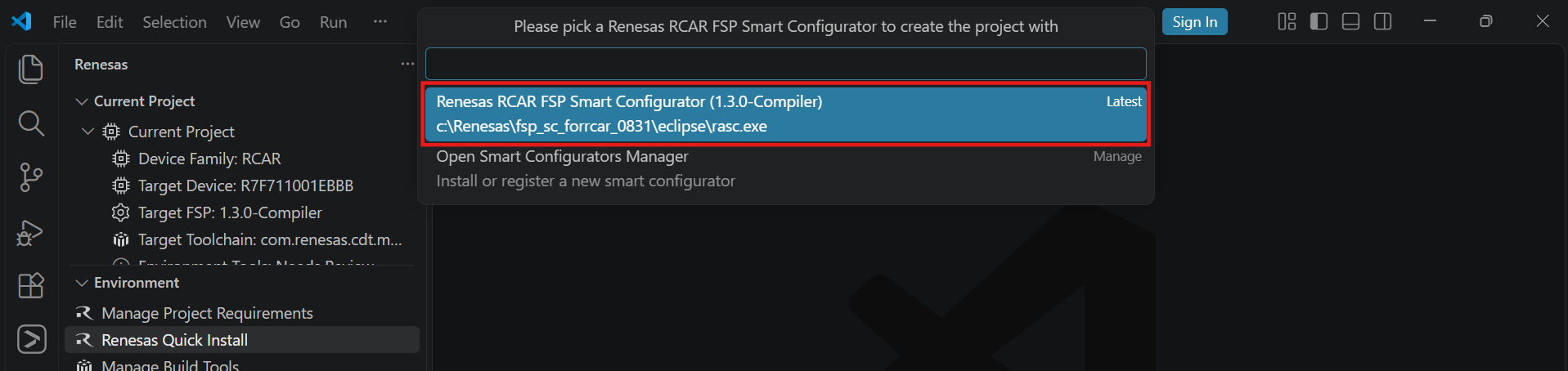
Then, VSCode will show installed [R-Car FSP Smart Configurator] list, select a [Smart Configurator] from the list.
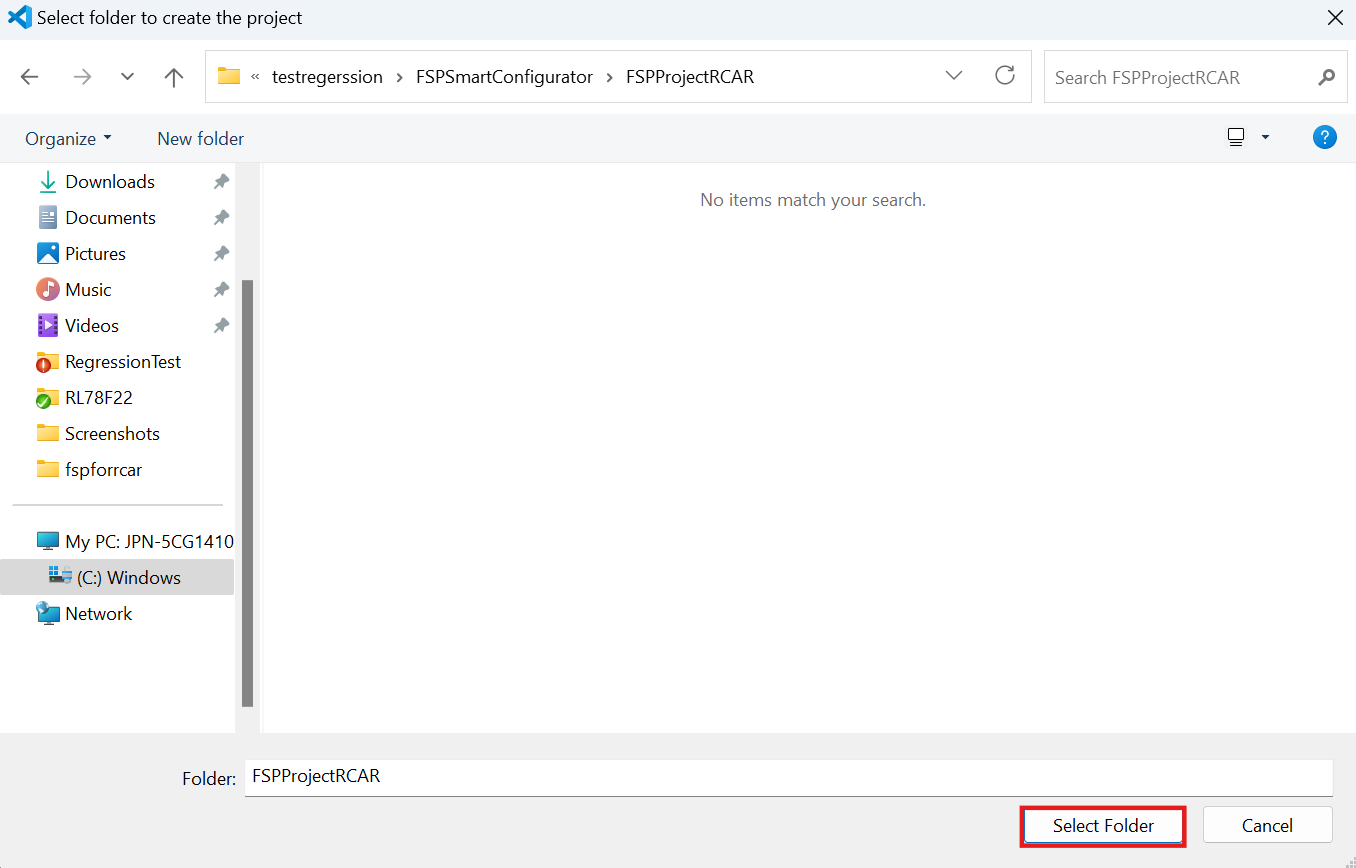
Select a [Folder] to create the project.
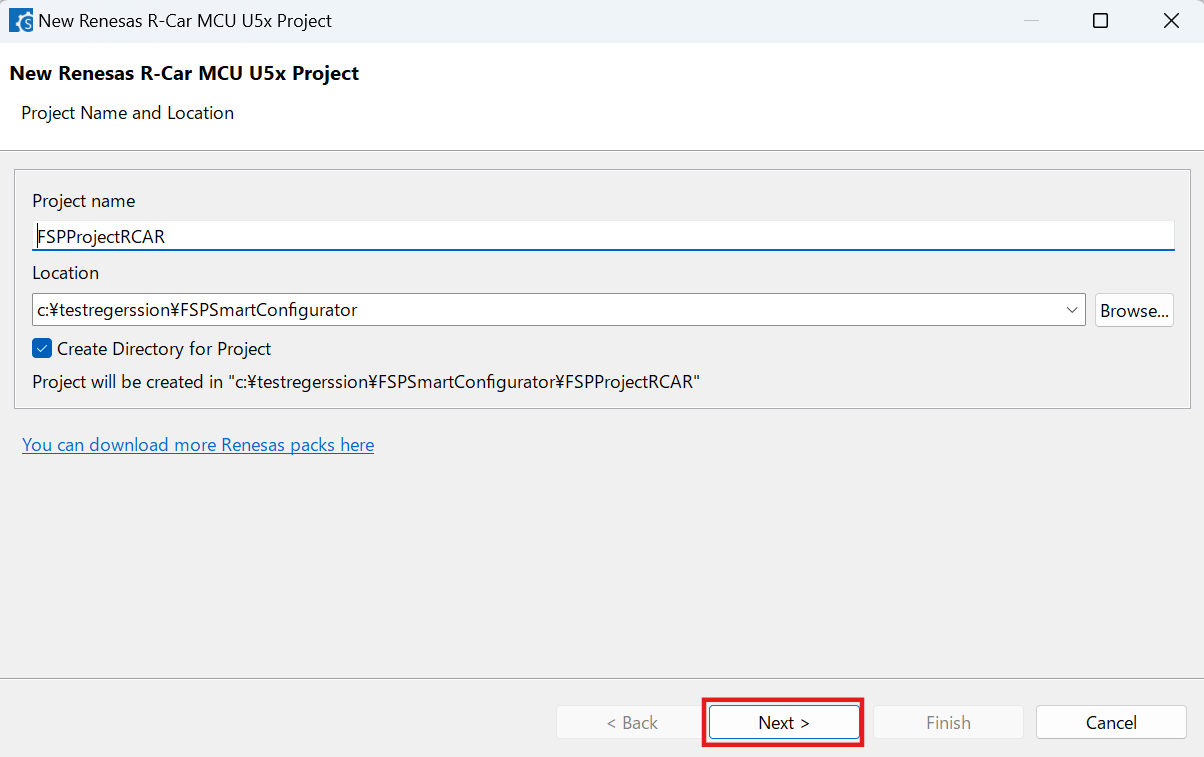
Keep the [Project name] and click [Next].
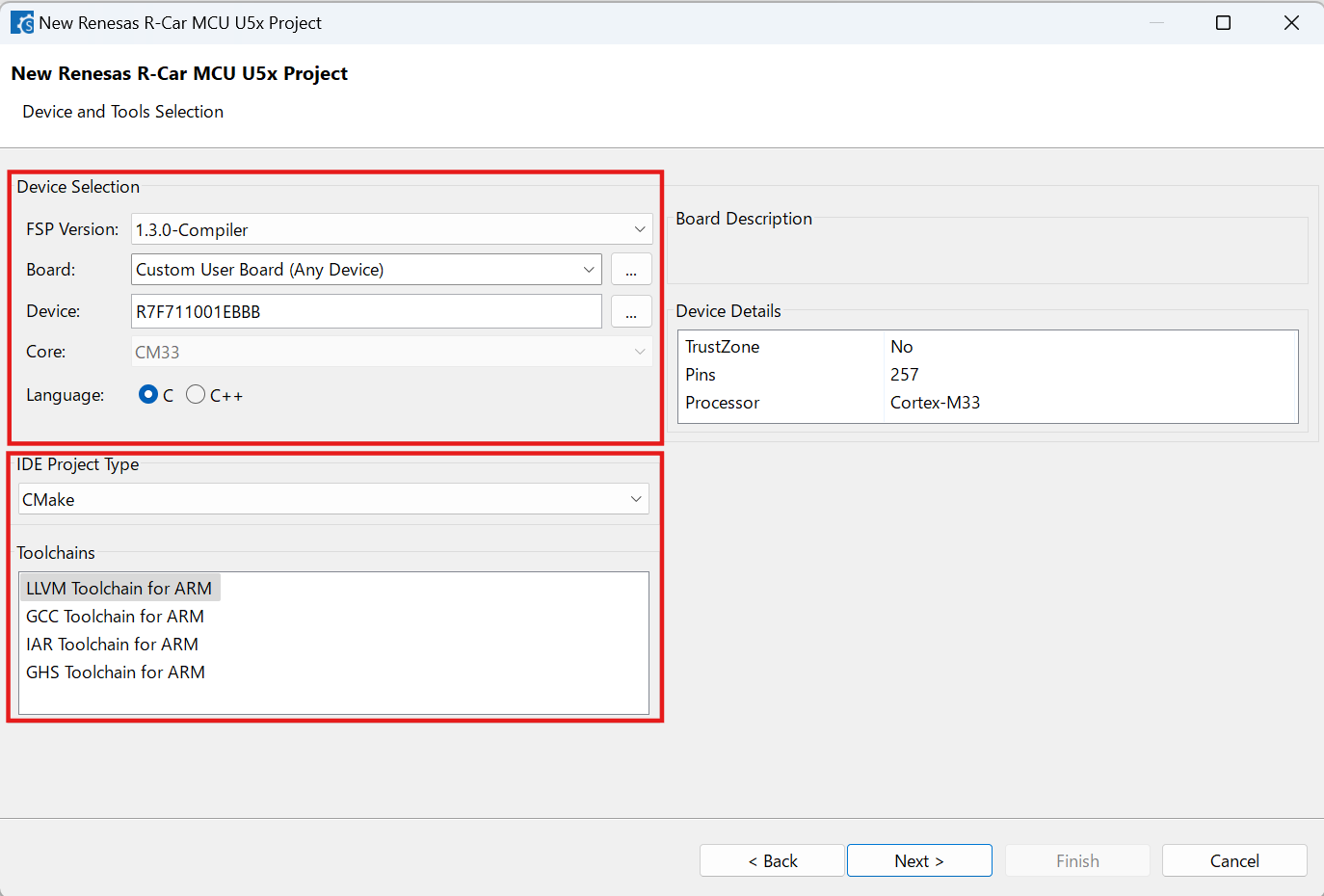
Configure your board, device type and preferred toolchain from the toolchains list, then click [Next].
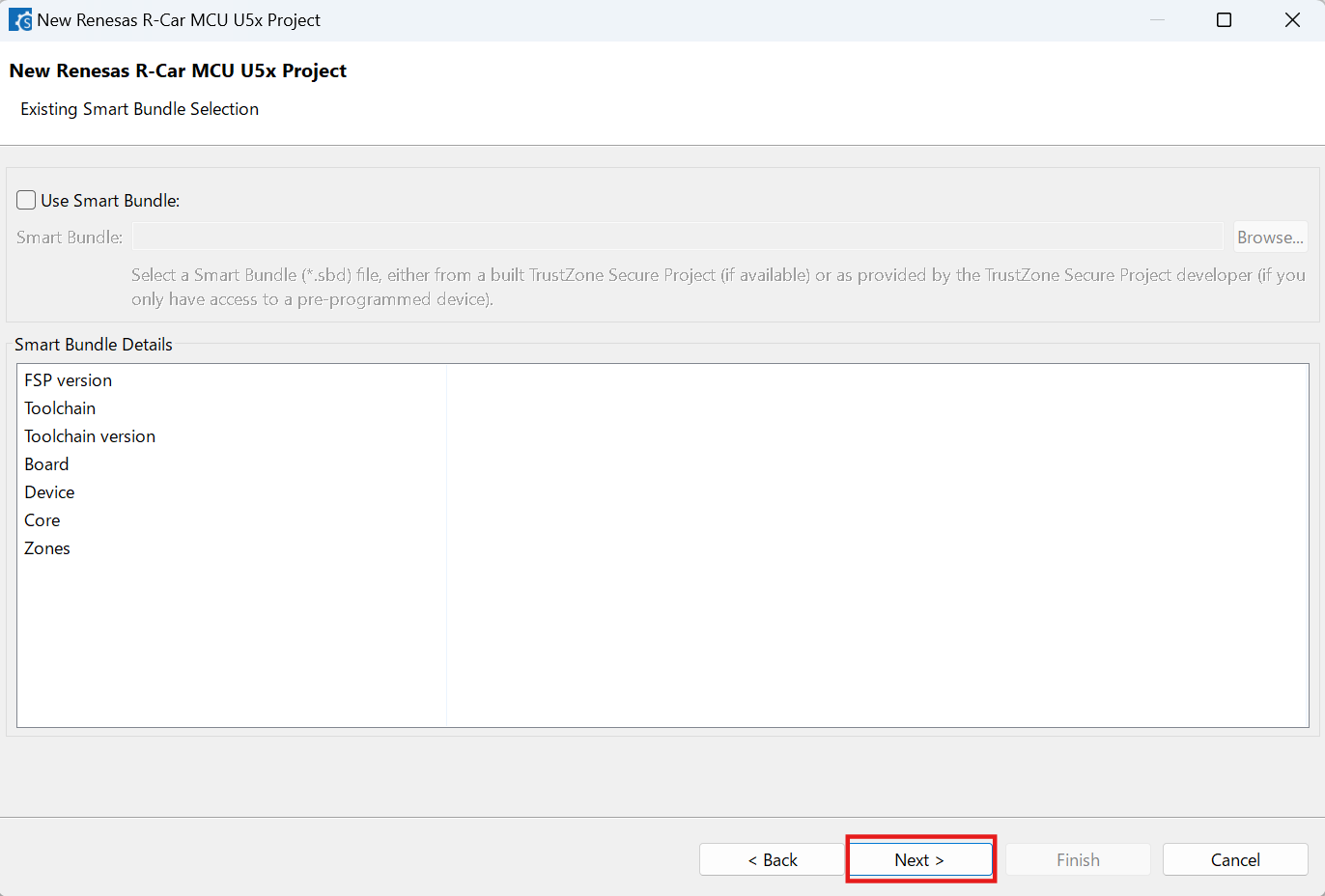
Choose the “Smart Bundle” configuration and continue by clicking [Next] (Skip choosing the Smart Bundle selection for the sample project).
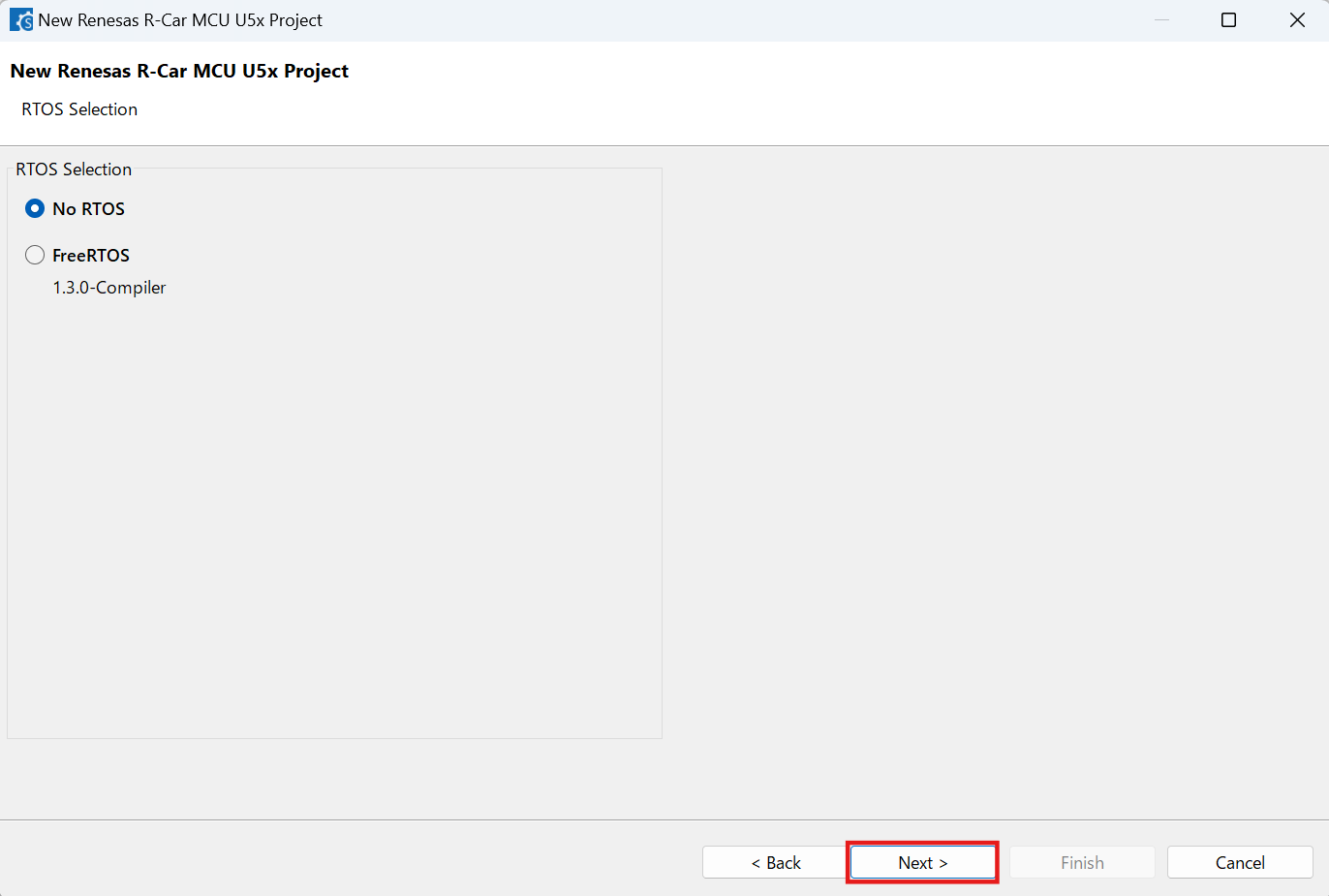
Choose the “RTOS” configuration and continue by clicking [Next] (Continue with “No RTOS” for the sample project).
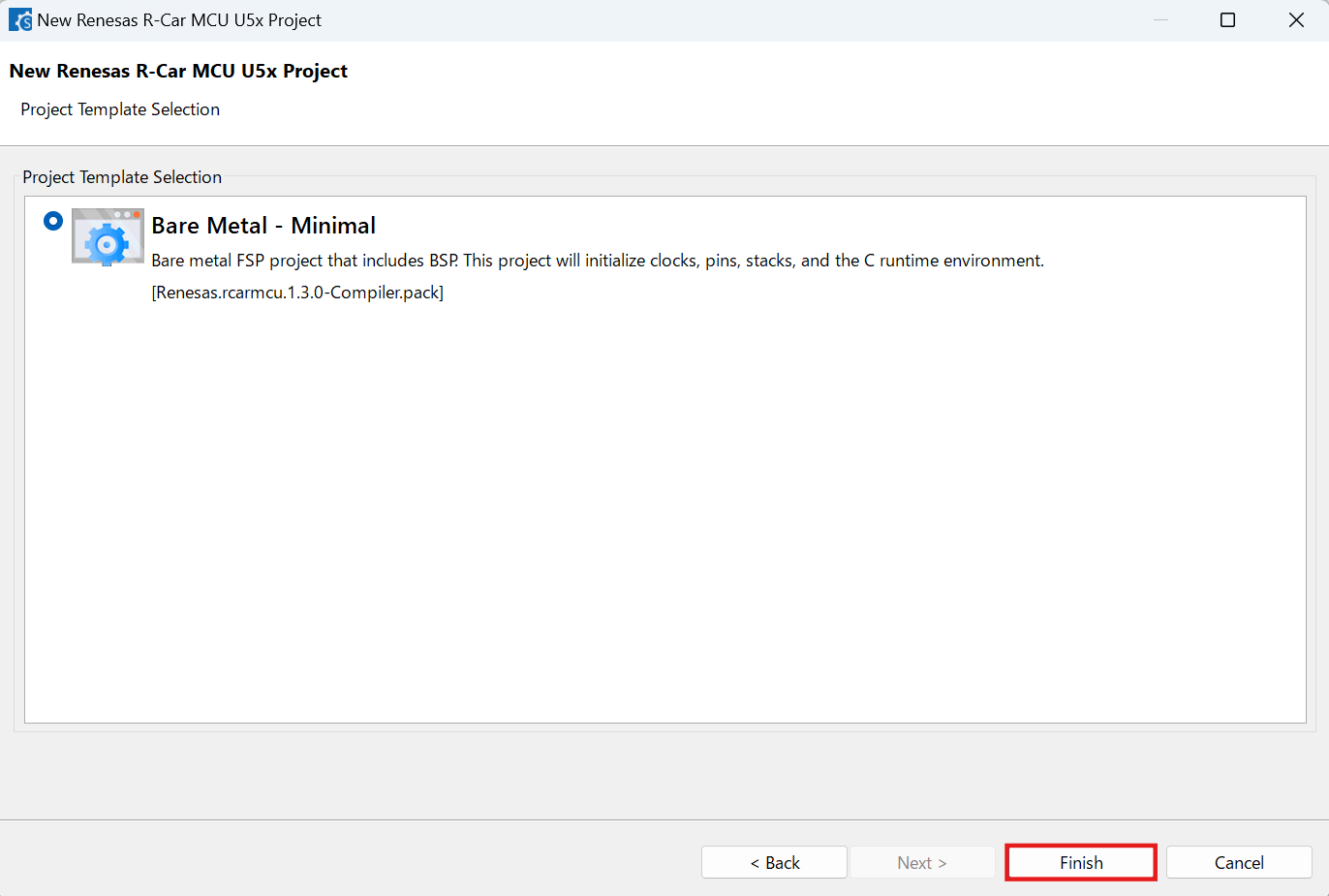
Choose one of the project templates then click [Finish] to complete the project creation steps.
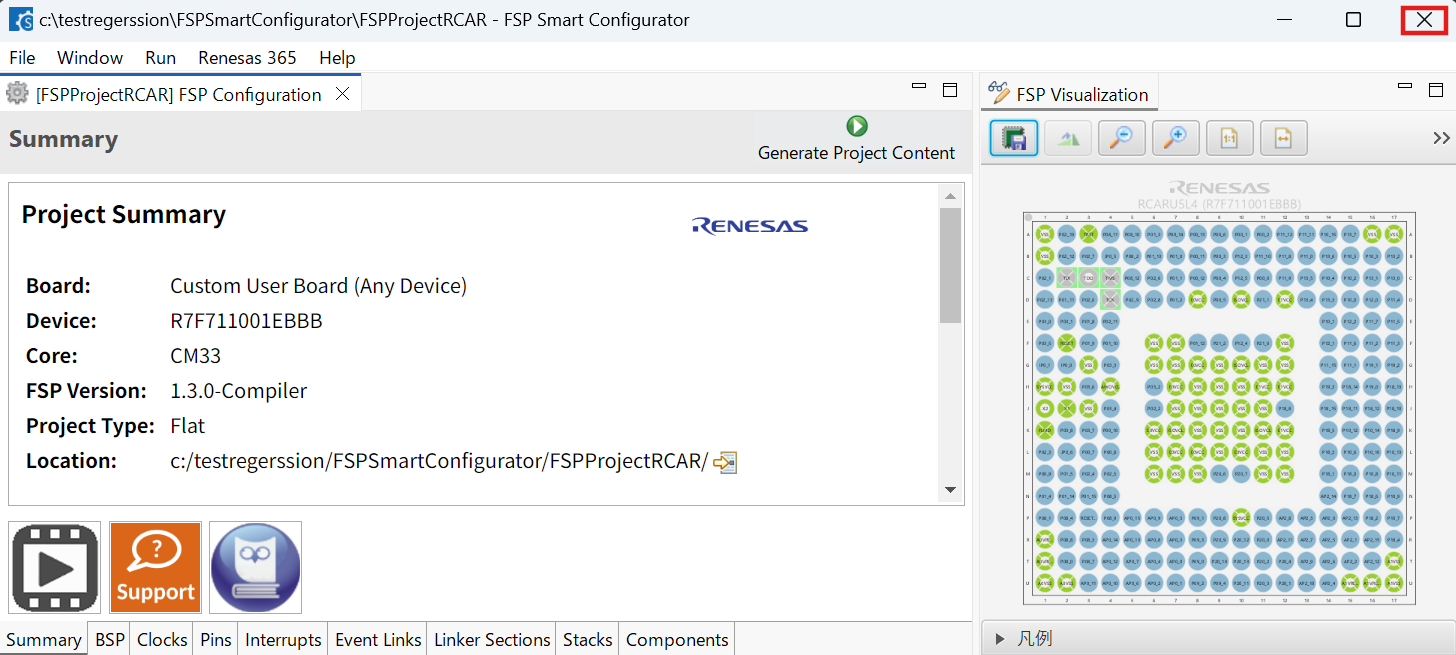
Close [R-Car FSP Smart Configurator] after generation of the project files completed.
15.4. Building the Project
For building a project, which has been created with R-Car FSP Smart Configurator, please follow the steps below:
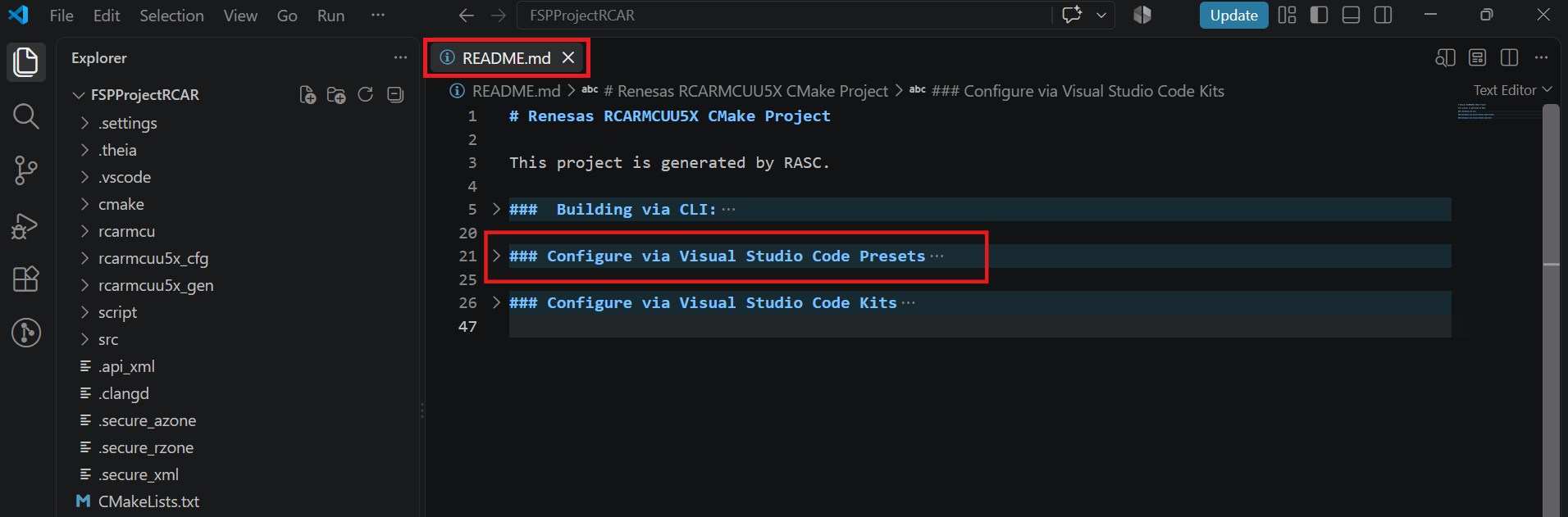
Please follow the Configure via Visual Studio Code section in README.md to set up the environment variables.
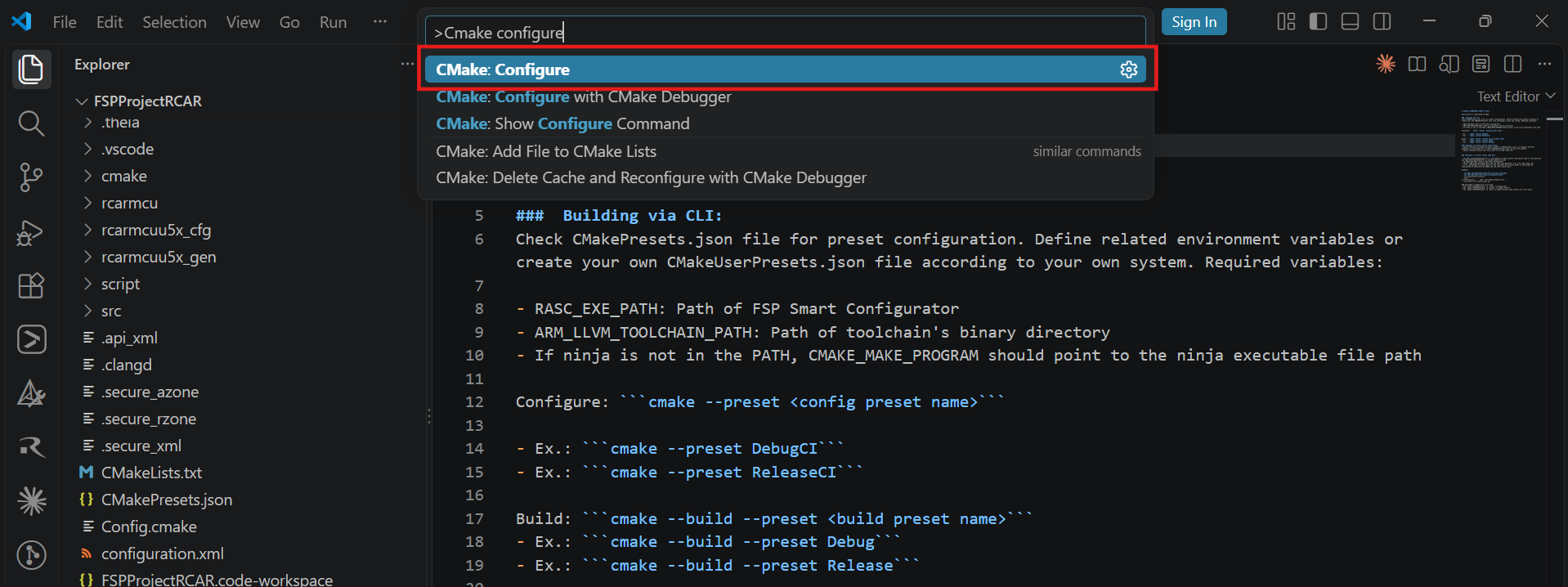
When the project is opened for the first time, CMake configure and the CMake Kit selection operations must be performed. In order to do these operations, open the “Command Palette” in VSCode and select “CMake: Configure” from the commands.
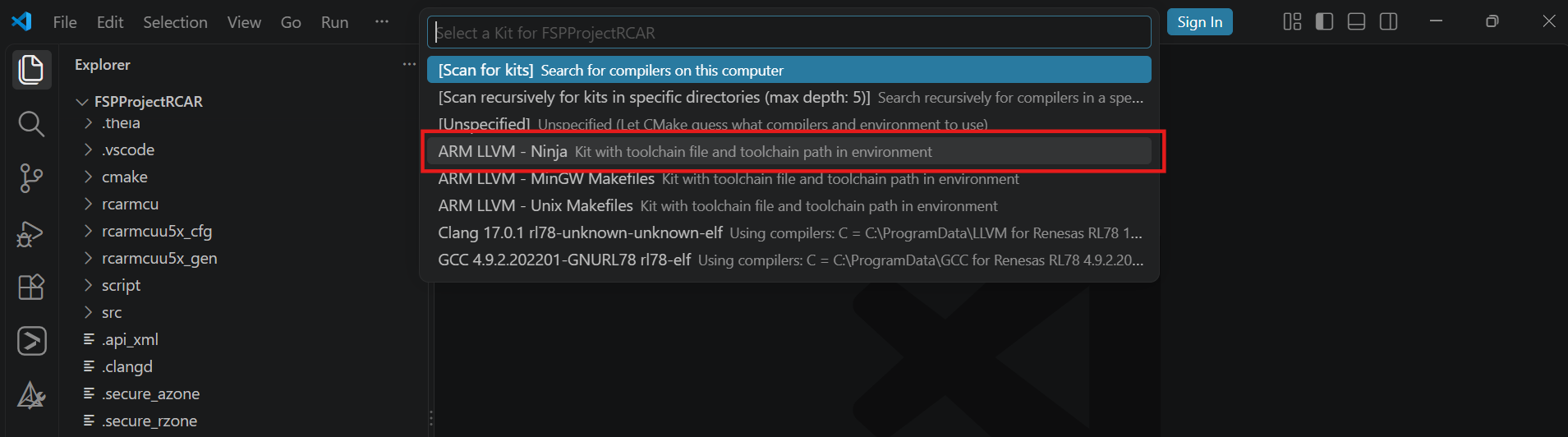
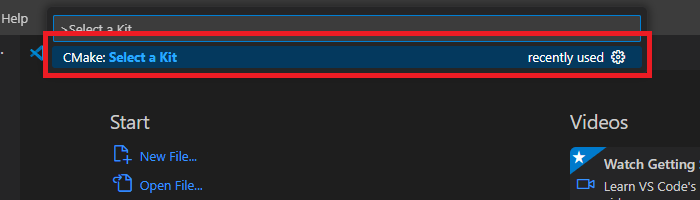
Then, a kit selection menu will be shown. Select the Renesas Platform kit that matches the toolchain used to generate the R-Car FSP project:
Note
Missing the selection of the CMake Kit or selecting the wrong kit can cause build problems. If you missed the CMake Kit selection or selected the wrong kit, run “CMake: Select a Kit” from the VS Code Command Palette, select the correct Renesas Platform kit, and configure the project again.
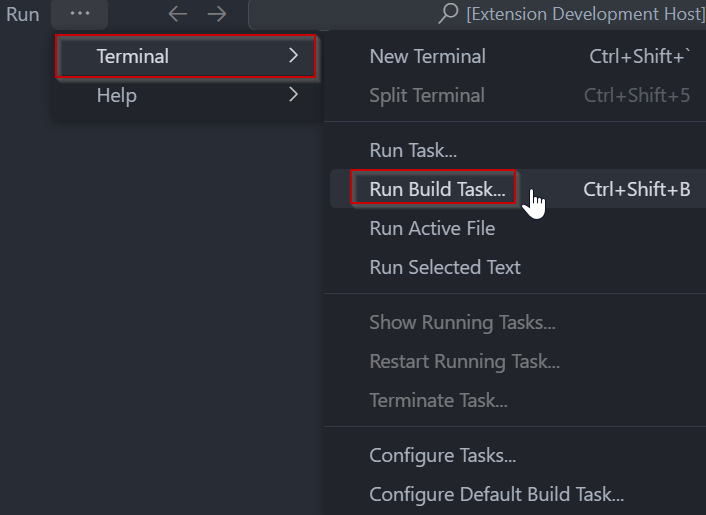
In VS Code, click [Terminal] ⇒ [Run Build Task] from the menu. Alternatively, press ctrl+shift+B to quickly open the Build task.
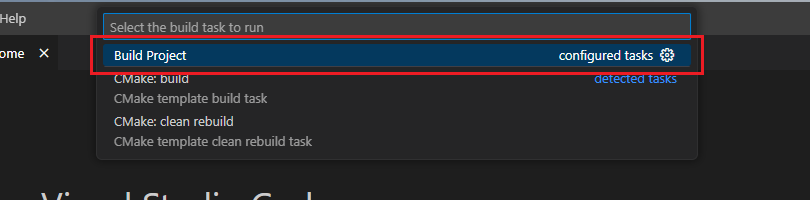
Select [Build Project] from the commands.
15.5. Editing/Re-configuring the Project
To edit a project, which has been created with R-Car FSP Smart Configurator, please follow the steps below:
Right click the “configuration.xml” file at the project root, and select the “Open with Smart Configurator” option in the context menu.
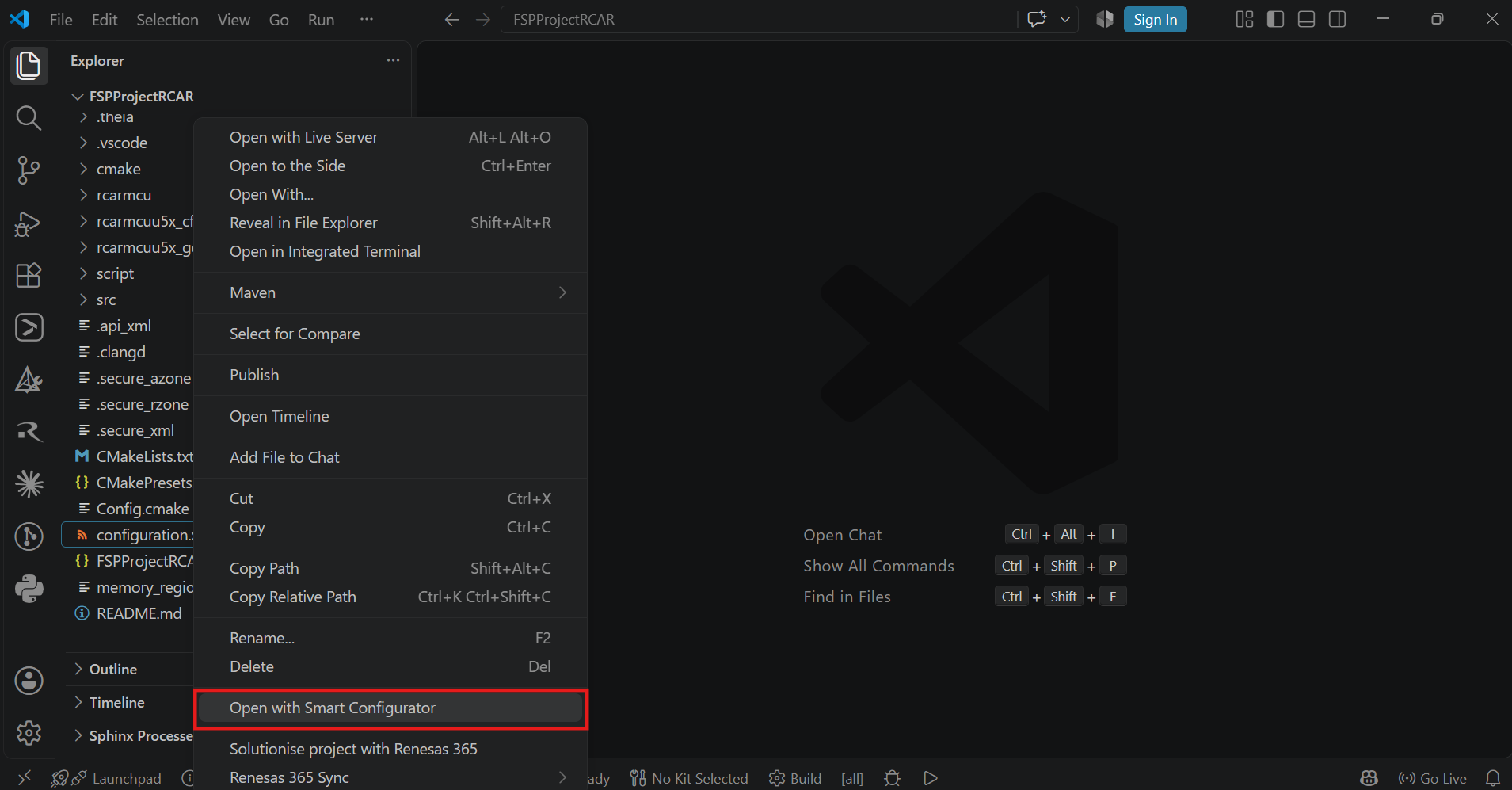
VSCode will show installed [R-Car FSP Smart Configurator] list, select a [Smart Configurator] from the list to open the project.
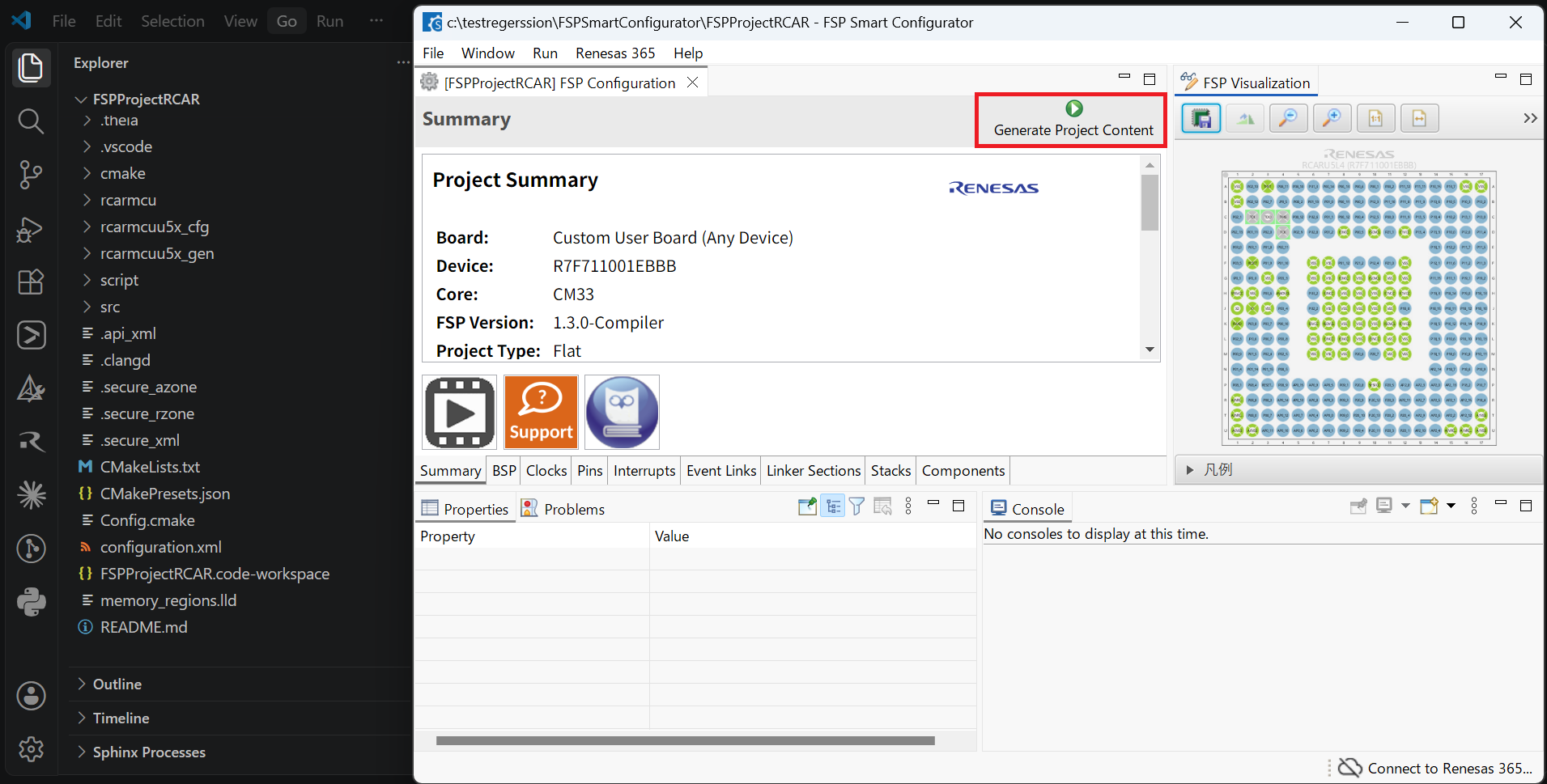
VSCode will open the project in the selected R-Car FSP Smart Configurator, now you can edit your project configuration in the R-Car FSP Smart Configurator. Once the changes completed, click the “Generate Project Content” button to re-generate the project content.
15.6. Debugging the Project
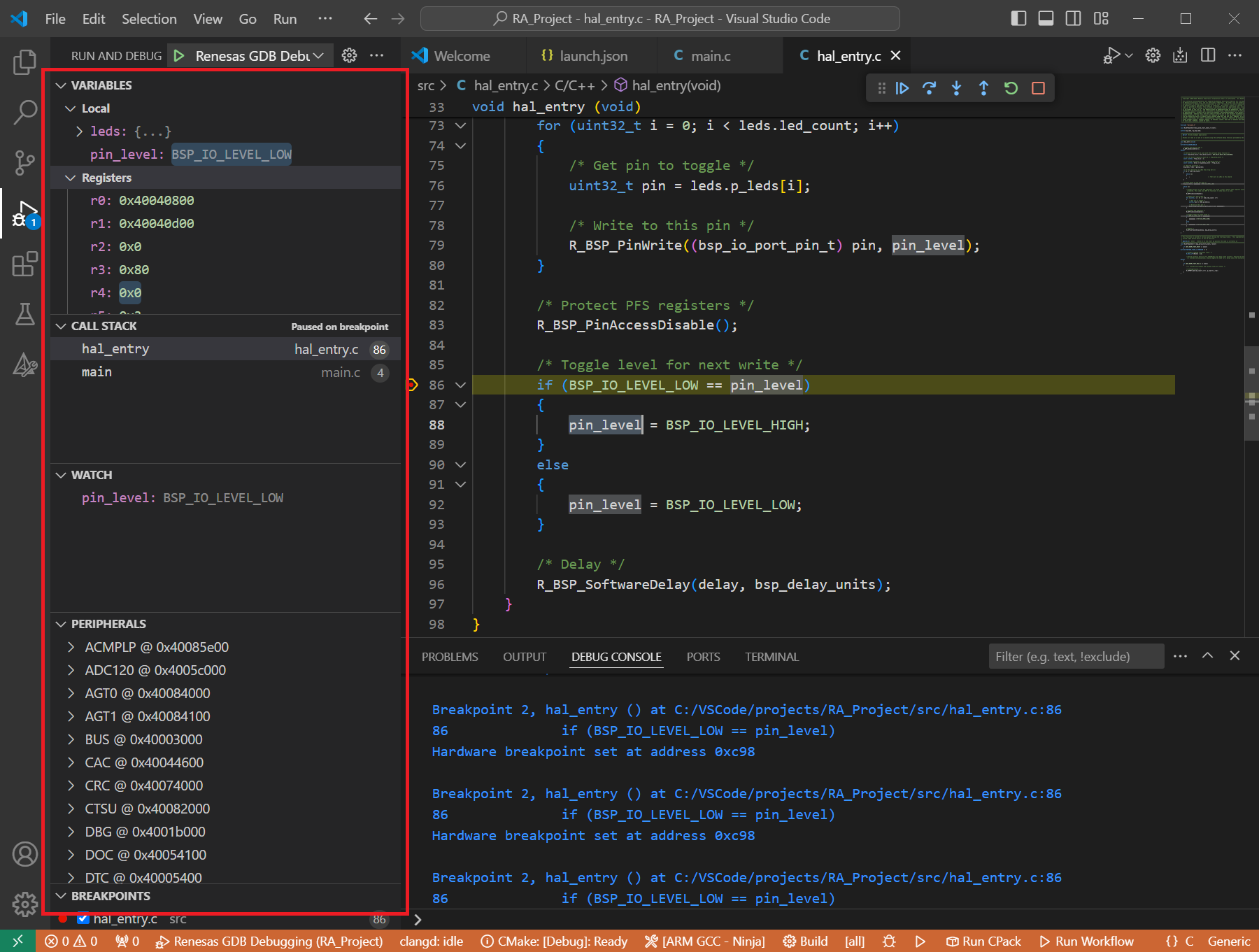
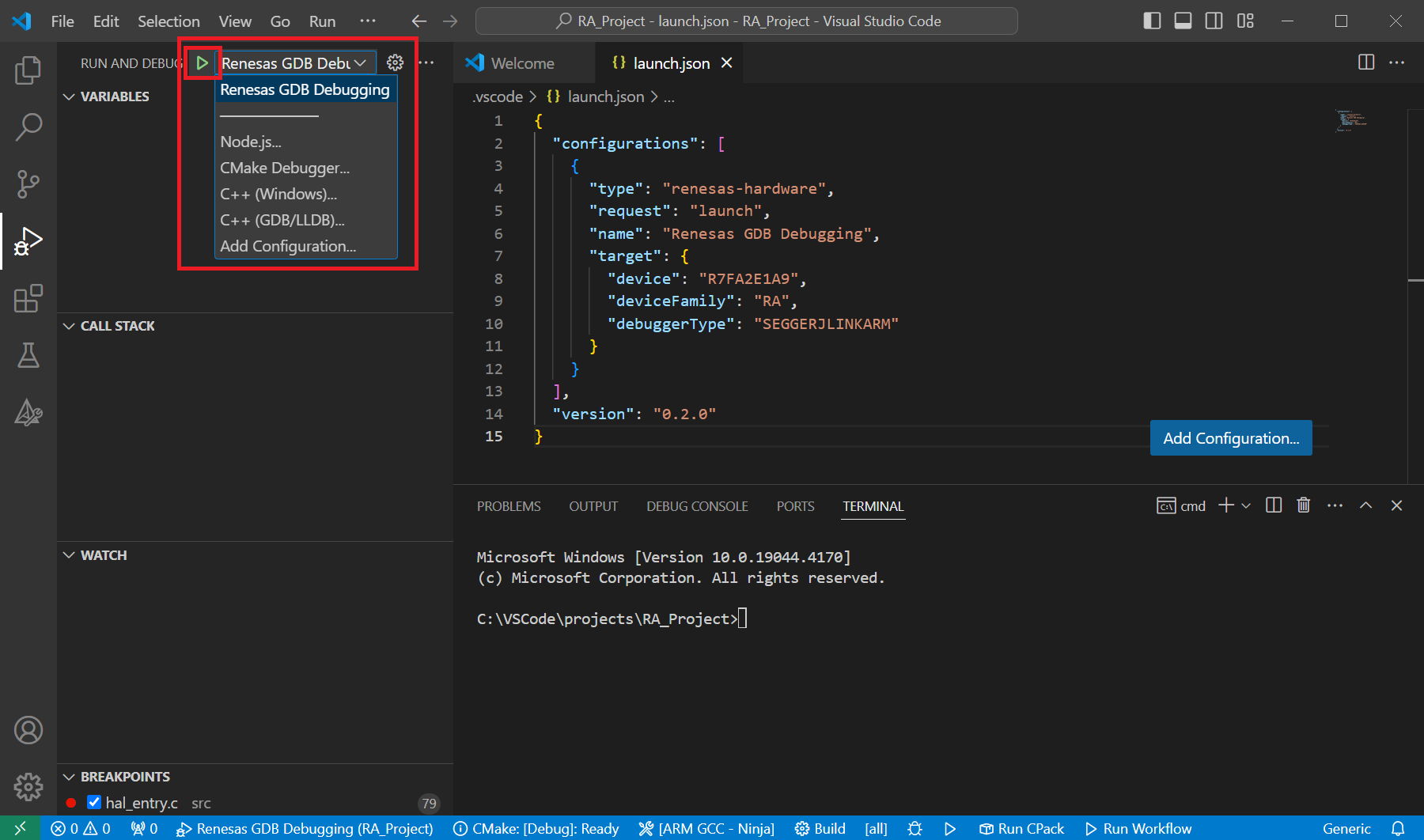
A debug session can be started by selecting the created configuration and clicking the [Start Debugging] button in the [Run and Debug] tab, or pressing [F5] from the keyboard.
When VS Code starts the debug session, common debug control flow functions like resume, suspend, step into, step over, step out, restart, terminate debug session can be performed via the debug flow control buttons. Also, the [Debug Console] view will contain useful messages during the debug session.
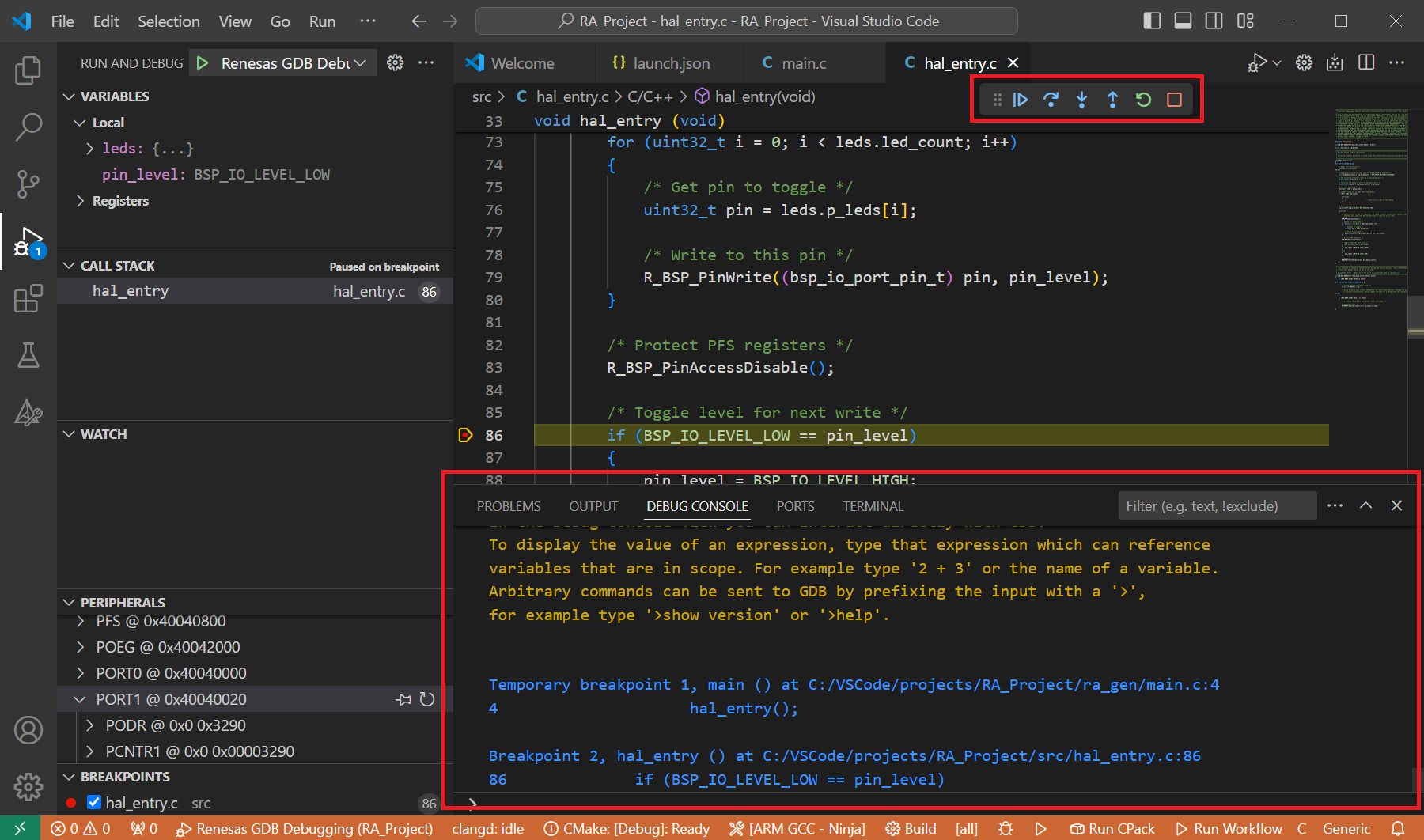
During the debug session, details about the local variables, device registers, call stack, watched variables, states of the peripherals can be accessed at the primary sidebar of VS Code in the [Run and Debug] tab.