6. Smart Browser
Renesas Smart Browser provides the following functions:
Displays the user’s manuals, technical updates, application notes, and tool news related to the device selected for the project.
Downloads the sample code included in the selected application note when it is available.
6.1. Open Smart Browser View
After opening the project, open the [Command Palette], type [Renesas: Open Smart Browser], and select the option.

The Smart Browser view contains 5 tabs: User’s Manual, Technical Update, Application Notes, Tool News and Notifications.
6.1.1. User’s Manual Tab
The User’s Manual tab displays a list of user’s manual publications related to the device selected for the project.
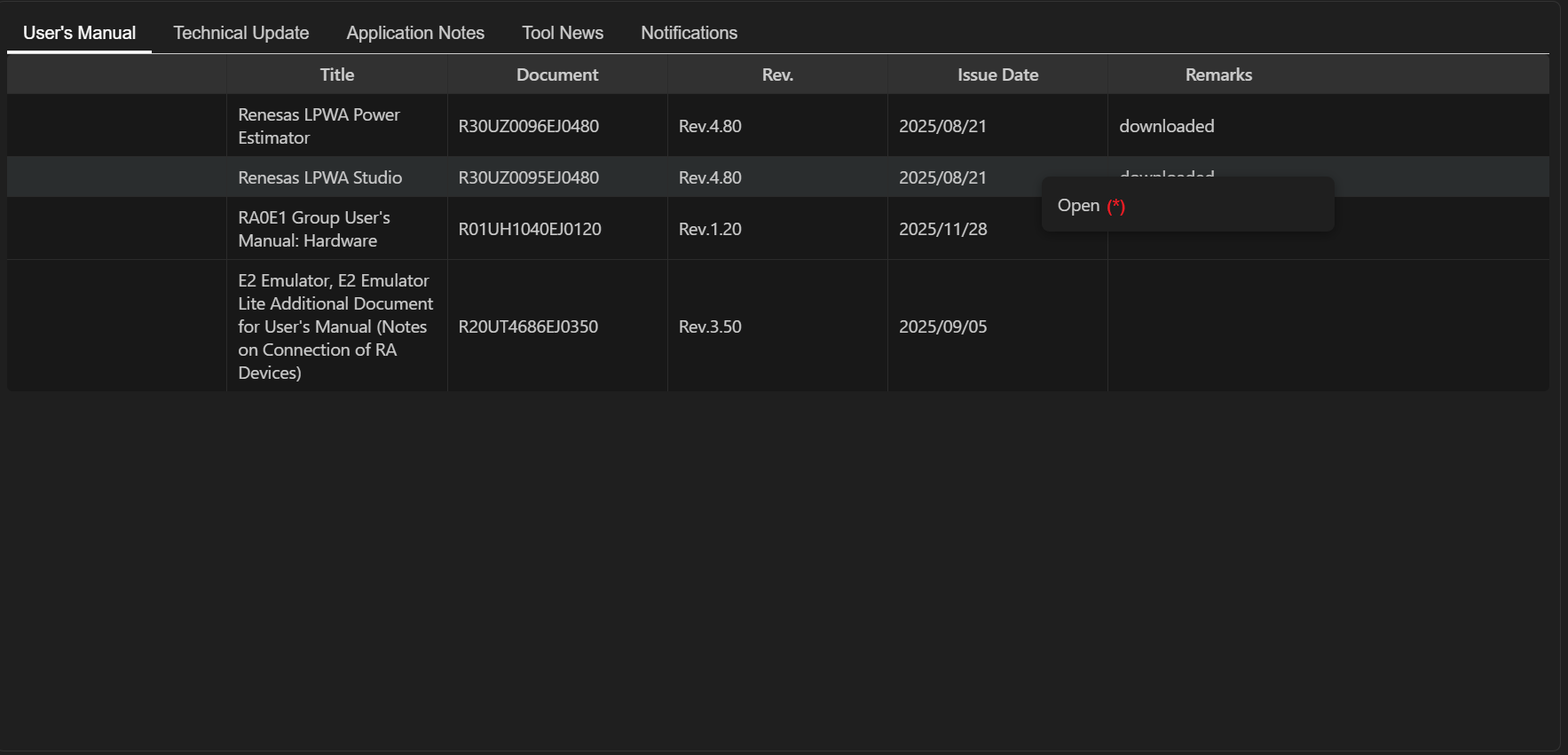
The contents of each column are shown below:
Title
Title of the document
Document
Number of the document
Rev.
Revision number of the document
Issue date
Date the document was issued
Remarks
Document display (download) state. If the document is downloaded, “downloaded” is displayed
(*) [Open] in the context menu
Select “Open” from the context menu or double-click the row to download and display the selected user’s manual.
Note
Some User’s Manual documents require acceptance of terms and conditions. In such cases, selecting “Open” will open the link in a web browser instead of downloading the document.
6.1.2. Technical Update Tab
The Technical Update tab displays a list of technical updates related to the device selected for the project.
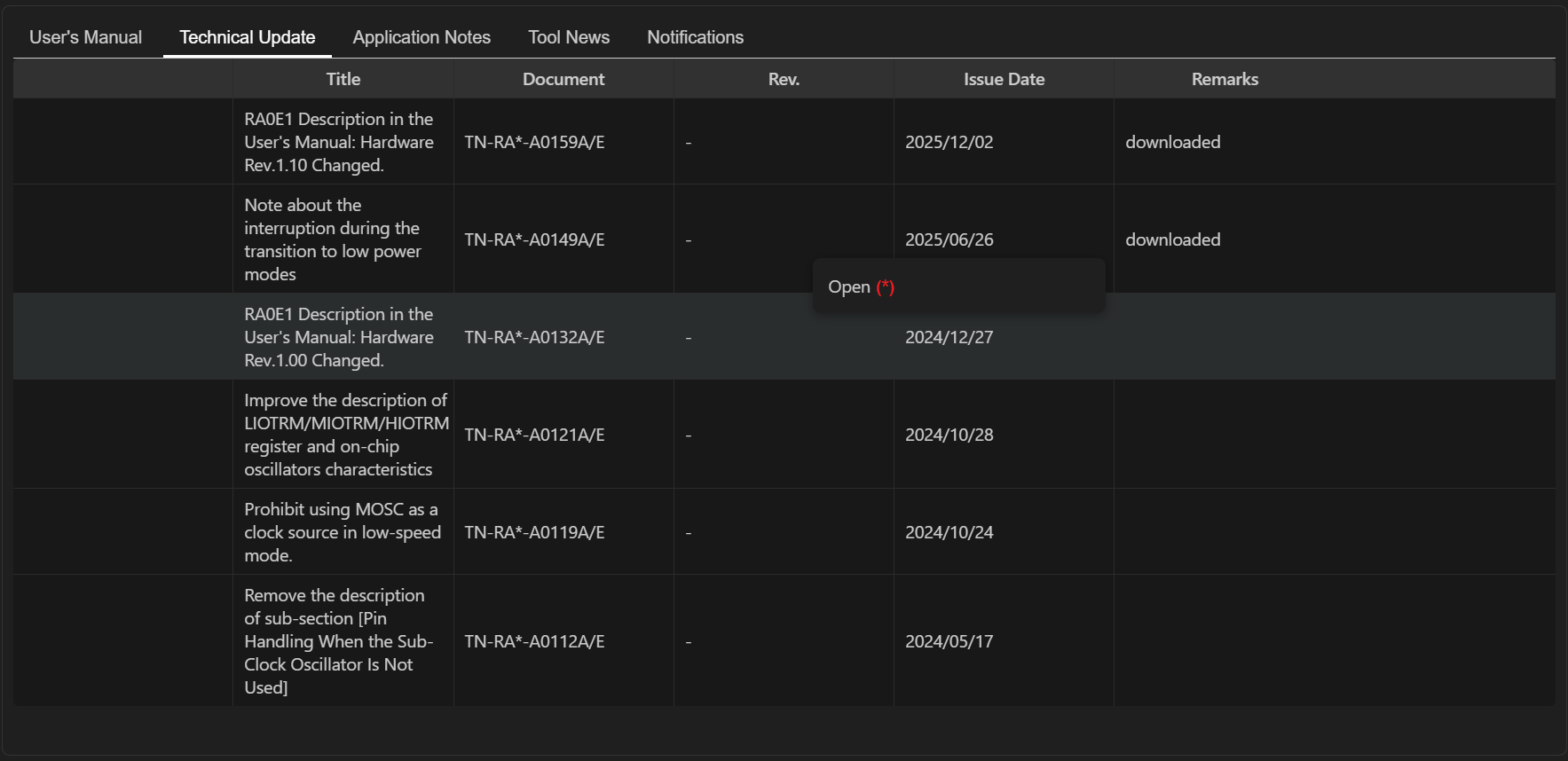
The contents of each column are shown below:
Title
Title of the document
Document
Number of the document
Rev.
Revision number of the document
Issue date
Date the document was issued
Remarks
Document display (download) state. If the document is downloaded, “downloaded” is displayed
(*) [Open] in the context menu
Select “Open” from the context menu or double-click the row to download and display the selected technical update.
6.1.3. Application Notes Tab
The Application Notes tab displays a list of application notes related to the device selected for the project.
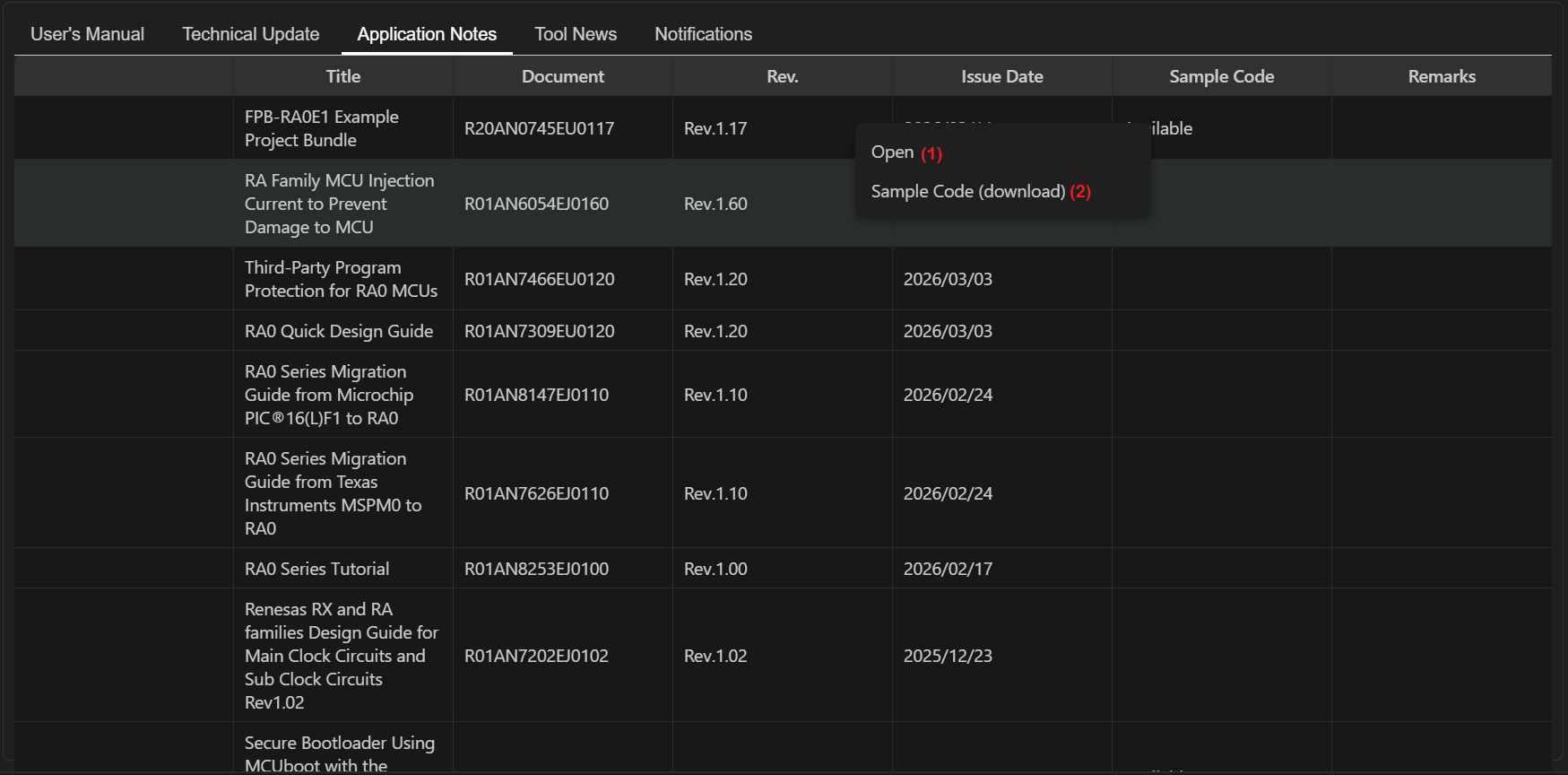
The contents of each column are shown below:
Title
Title of the document
Document
Number of the document
Rev.
Revision number of the document
Issue date
Date the document was issued
Sample Code
Indicates whether sample code is available. If available, “Available” is displayed.
Remarks
Document display (download) state. If the document is downloaded, “downloaded” is displayed
(1) [Open] in the context menu
Select “Open” from the context menu or double-click the row to download and display the selected application note.
(2) [Sample Code (download)] in the context menu
Select “Sample Code (Download)” from the context menu to download the sample code. A browser will open with a link to download it.
6.1.4. Tool News Tab
The Tool News tab displays a list of tool news related to the device selected for the project.
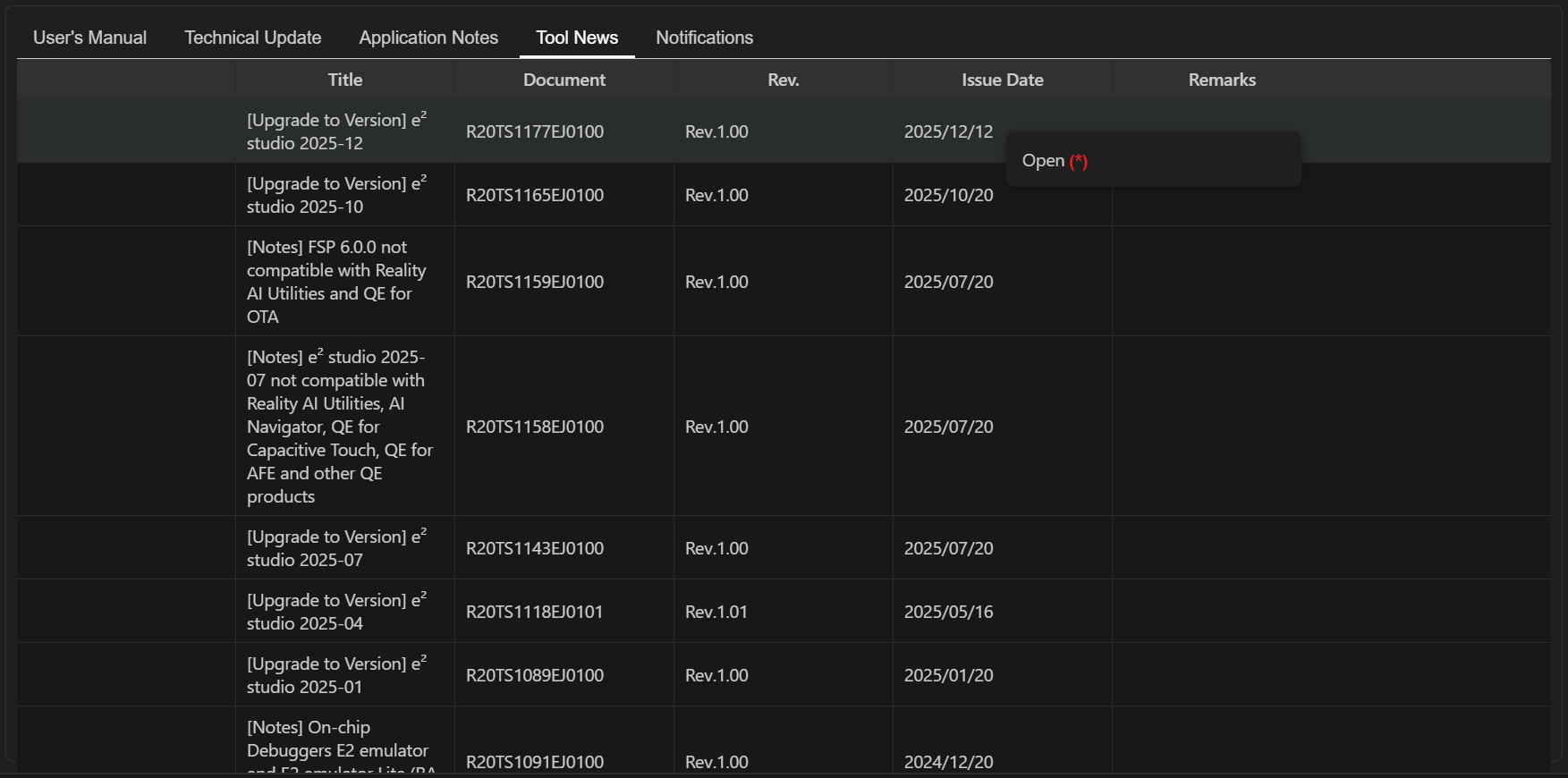
The contents of each column are shown below:
Title
Title of the document
Document No.
Number of the document
Rev.
Revision number of the document
Document No.
Number of the document
Issue date
Date the document was issued
Remarks
Document display (download) state. If the document is downloaded, “downloaded is displayed”
(*) [Open] in the context menu
Select “Open” from the context menu or double-click the row to download and display the selected tool news.
6.1.5. Notifications Tab
The Notifications tab displays a list of notifications related to the device selected for the project.
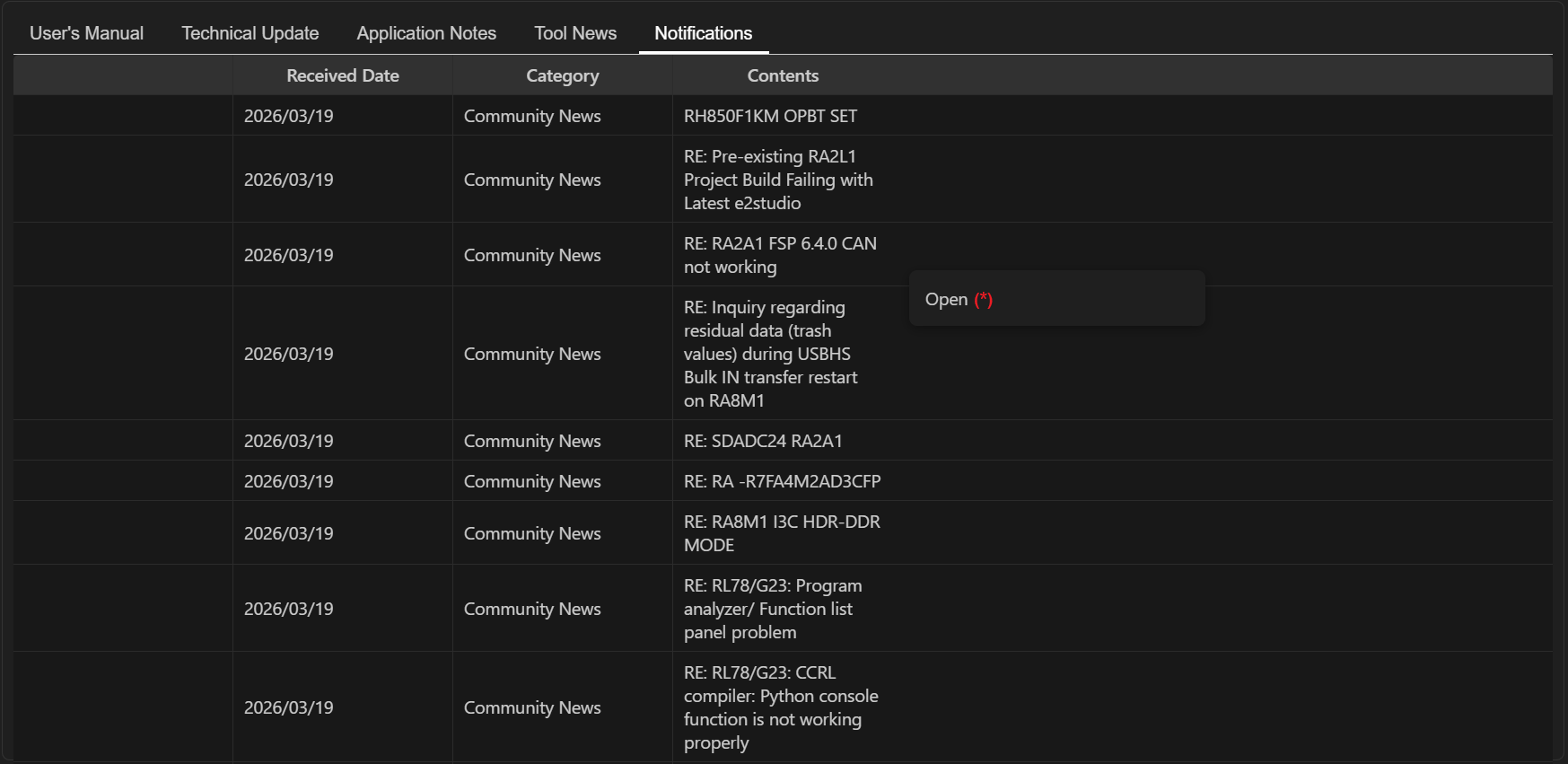
The contents of each column are shown below:
Received Date
The date the message is received.
Category
Category of the message
Contents
Brief information of the message
(*) [Open] in the context menu
Select “Open” from the context menu to view the detailed information of the selected message in a web browser.
6.2. Region Selection
The Smart Browser supports for some regions:
Region |
Language |
|---|---|
Americas |
English (en-us) |
Japan |
Japanese (ja-jp) |
Mainland China/Hong Kong |
Chinese (zh-cn) |
The region is automatically determined based on the selected VS Code display language.
To change the region, select a language using the Configure Display Language command in the Command Palette, then restart VS Code. The region will be updated accordingly.
Any language other than English, Japanese, or Chinese will default to English.
