8. Renesas Common Project Converter
The Renesas Common Project Converter converts a Renesas Common Project file into CMake and Visual Studio Code configuration files.
This tool is intended for users who want to import an existing Renesas project into Visual Studio Code and continue development using the Renesas VS Code extension environment.
Note
The converter generates configuration files. It does not install CMake or the toolchain.
The current version only supports CS+ Renesas Common Project files with the .rcpe extension for RX projects using the CC-RX toolchain.
8.1. Supported Input
Item |
Support status |
|---|---|
Common project file |
|
Source IDE |
CS+ |
Device family |
RX |
Toolchain |
CC-RX |
8.2. Generated Files
After conversion, the following files are generated in the folder that contains the selected .rcpe file.
8.2.1. VS Code configuration files
.vscode/launch.json.vscode/settings.json.vscode/tasks.json
8.2.2. CMake configuration files
CMakeLists.txtConfig.cmakecmake/cross.cmakecmake/GeneratedCfgRCP.cmakecmake/GeneratedLinkerObject.cmakecmake/GeneratedSrcRCP.cmake
Note
If generated files with the same names already exist, they may be overwritten. Back up any manually edited configuration files before running the converter again.
8.3. Using the Converter
The converter can be started in the following ways:
From the Import Project view in the Renesas Platform sidebar
From the Command Palette
From the Explorer Context Menu
8.3.1. Import Project View
Use this flow when importing an existing CS+ project into Visual Studio Code.
To import a project:
Open Visual Studio Code.
Open the Renesas activity and click Import Project in the Import Project view.
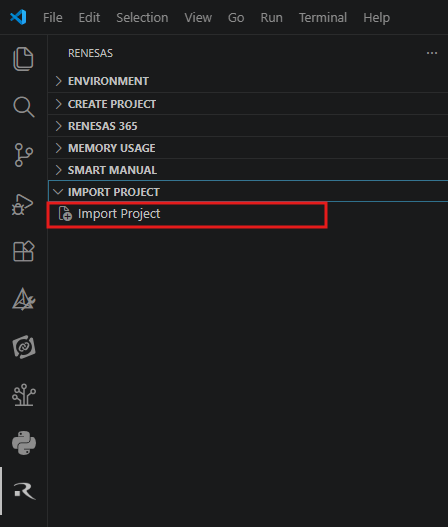
The Import Project View
Select Import Renesas common project file.

Import Renesas Common Project File
In the file picker dialog, select a
.rcpefile.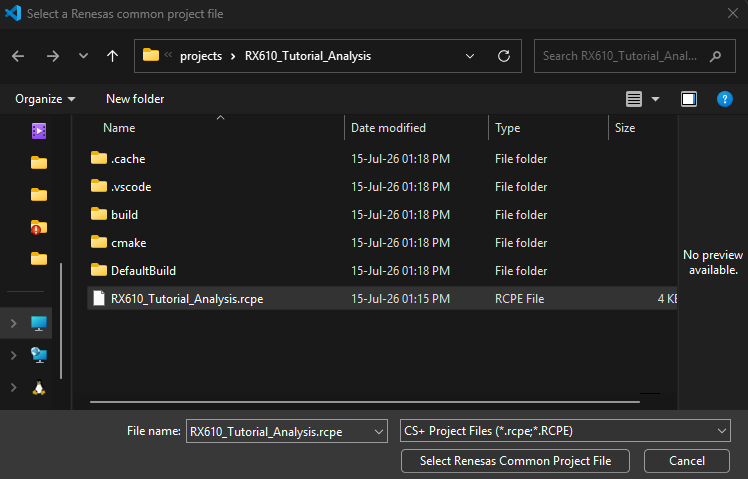
File Picker Dialog
Visual Studio Code opens the folder that contains the selected
.rcpefile.Note
If the selected file is not in the currently opened workspace, the converter opens the folder that contains the selected file.
This allows users to select a
.rcpefile first without manually opening the project folder beforehand.Conversion starts automatically after the folder is opened.
When conversion finishes successfully, the generated CMake and Visual Studio Code configuration files are created in the project folder.
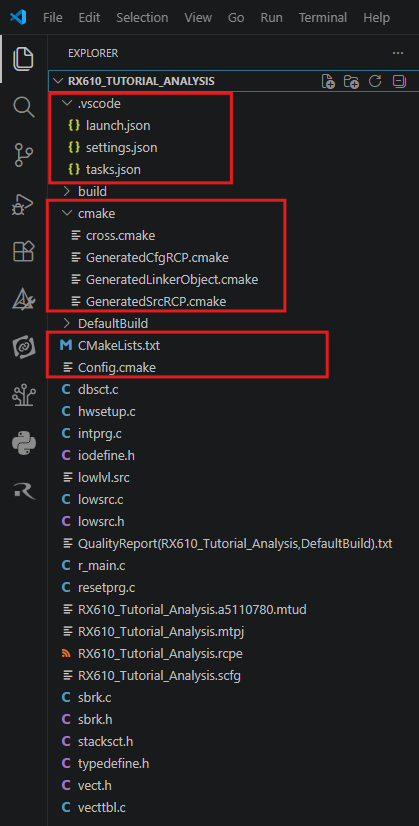
Generated Files
8.3.2. Command Palette
Use this flow when you want the converter to detect .rcpe files in the current workspace.
To run the converter from the Command Palette:
Open the Command Palette and run the command for converting a Renesas Common Project file.
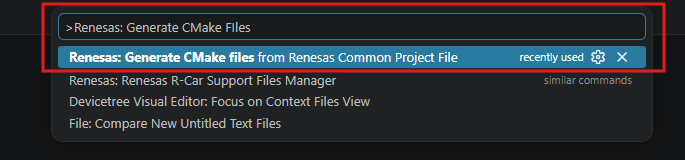
Command Palette
The converter scans the current workspace for supported project files.
The following behaviour is applied:
If exactly one
.rcpefile is found, the converter opens the folder containing the file if needed and starts conversion automatically.If multiple
.rcpefiles are found, a selection list is displayed. Select the file to convert.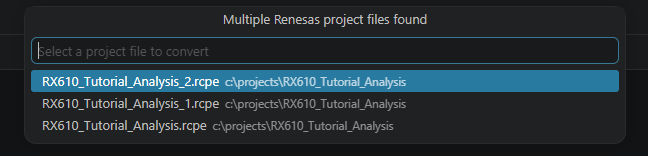
Multi Renesas Common Project Files Found
- If no
.rcpefile is found, an information message is displayed. 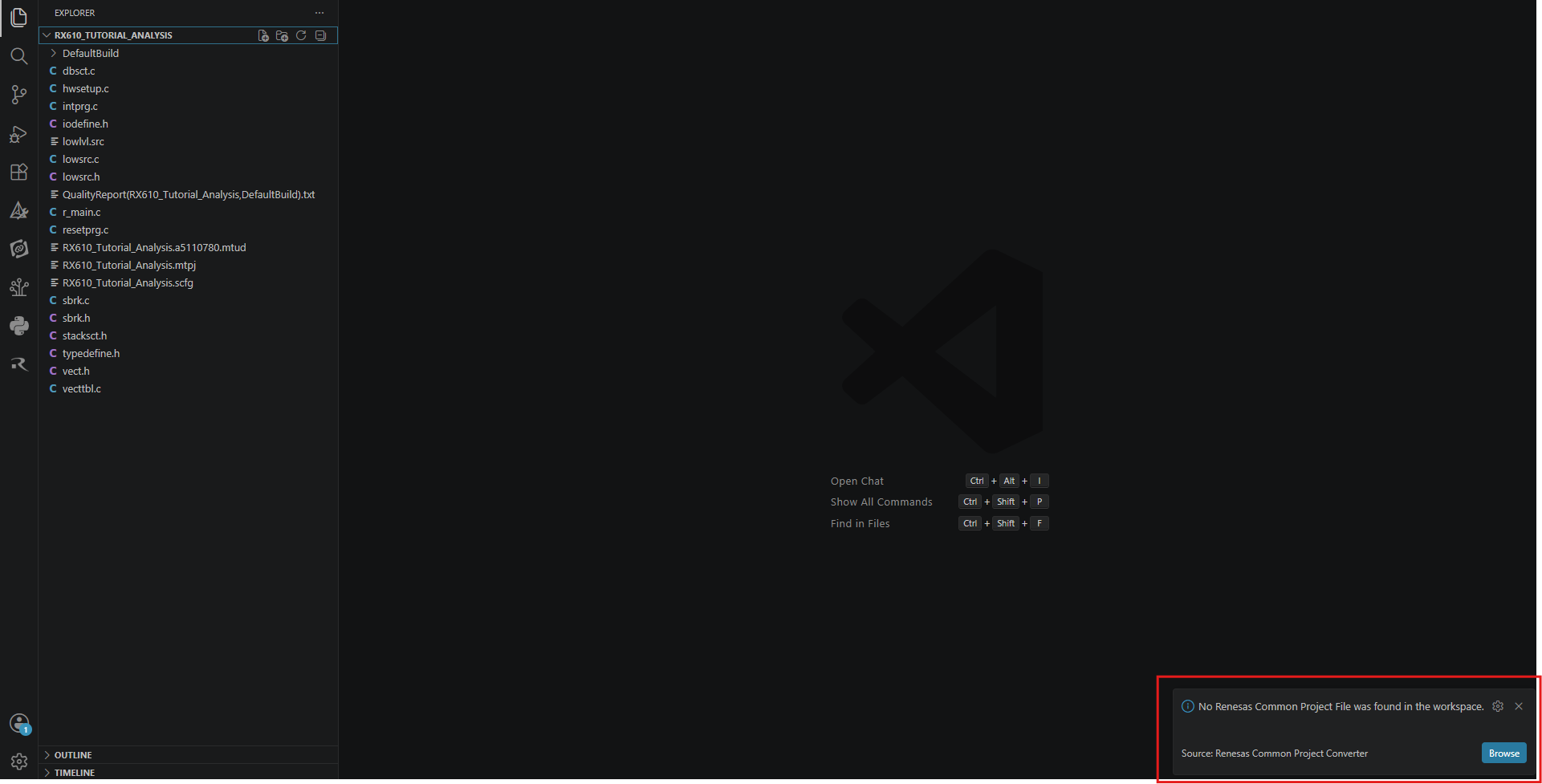
No Renesas Common Project Files Found
- Select Browse to manually choose a
.rcpefile. 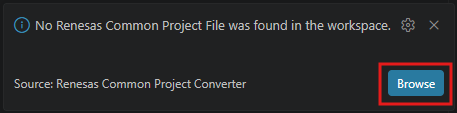
Browse File
- Select Browse to manually choose a
Cancel the message to stop the conversion.
- If no
8.3.3. Explorer Context Menu
Use this flow when the project folder is already opened in Visual Studio Code.
To run the converter from the Explorer context menu:
In the Explorer view, right-click a
.rcpefile and select Generate CMake Files from the context menu.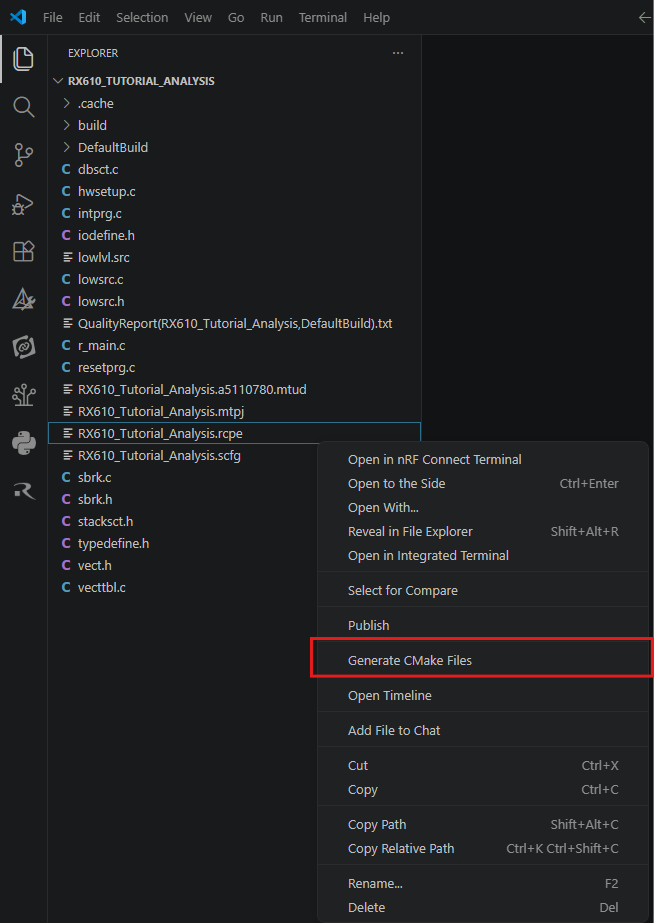
Context Menu
The conversion starts immediately.
Note
Multi-file selection from the context menu is not supported. Select one .rcpe file at a time.
8.4. Conversion Progress and Result
8.4.1. Progress Notification
During conversion, Visual Studio Code shows a progress notification:
Converting project...
8.4.2. Successful Conversion
When conversion completes successfully, the following message is shown:
Project conversion completed.
Detailed conversion logs are written to Output > Renesas CMake Converter

Output Channel
8.4.3. Failed Conversion
If the conversion fails, the following message is shown:
Project conversion failed. Check the [Output] > [Renesas CMake Converter] channel for details.
Detailed error information is written to Output > Renesas CMake Converter
Example error output:

Failed Conversion
In this case, check the selected project file and the error details in the Renesas CMake Converter output channel.